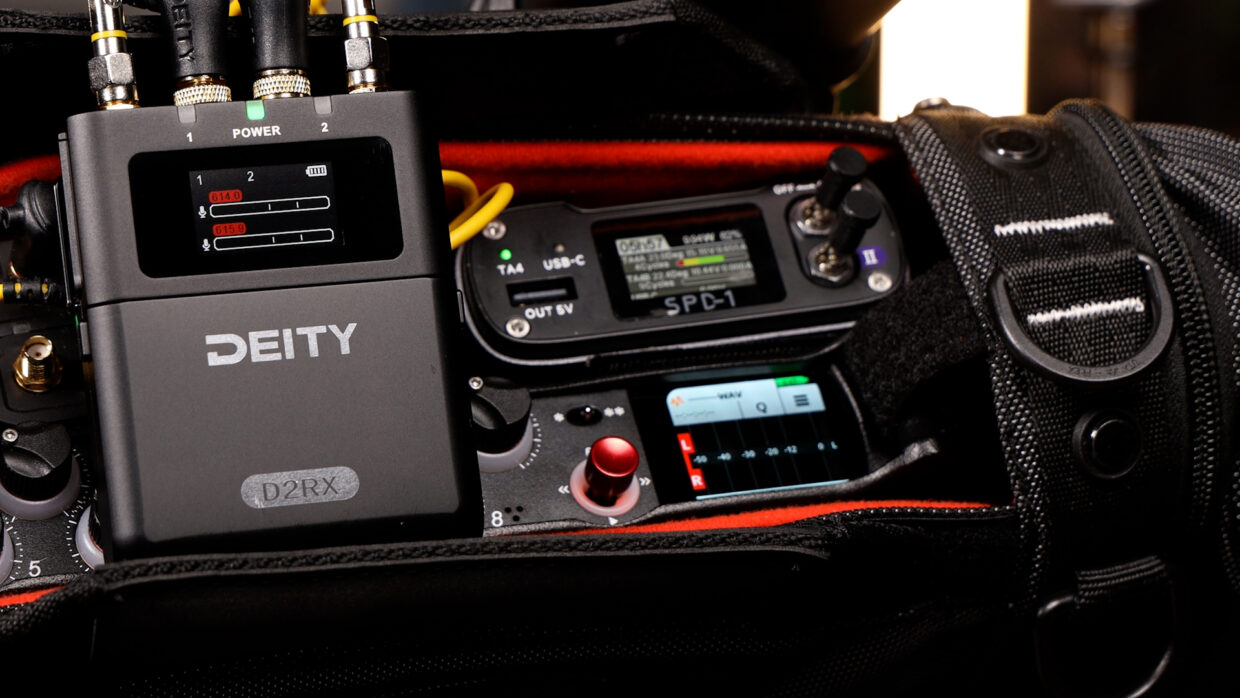
Keeping your THEOS firmware up to date unlocks the latest features and stability improvements. This guide shows you how to update your transmitters and receiver.
Step-By-Step User Guide
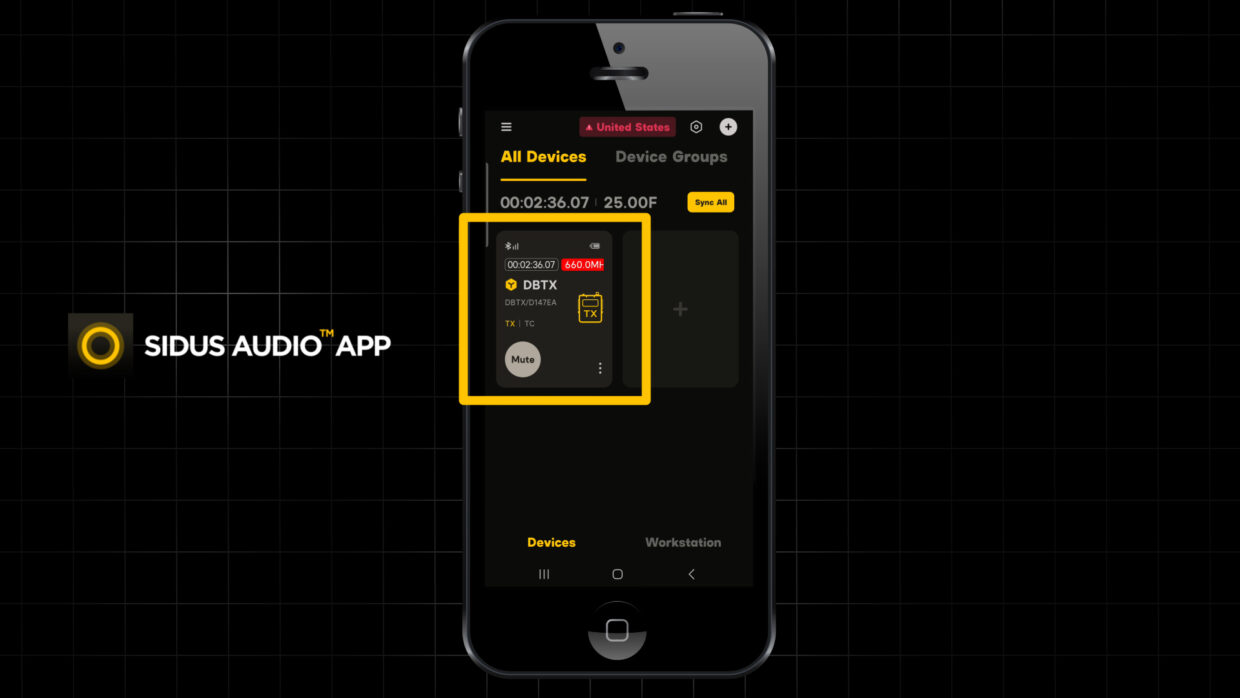
Sidus Audio
Today we’ll be showing you how to update your THEOS Wireless system using the Sidus Audio App.
First, make sure your devices are paired to the app.
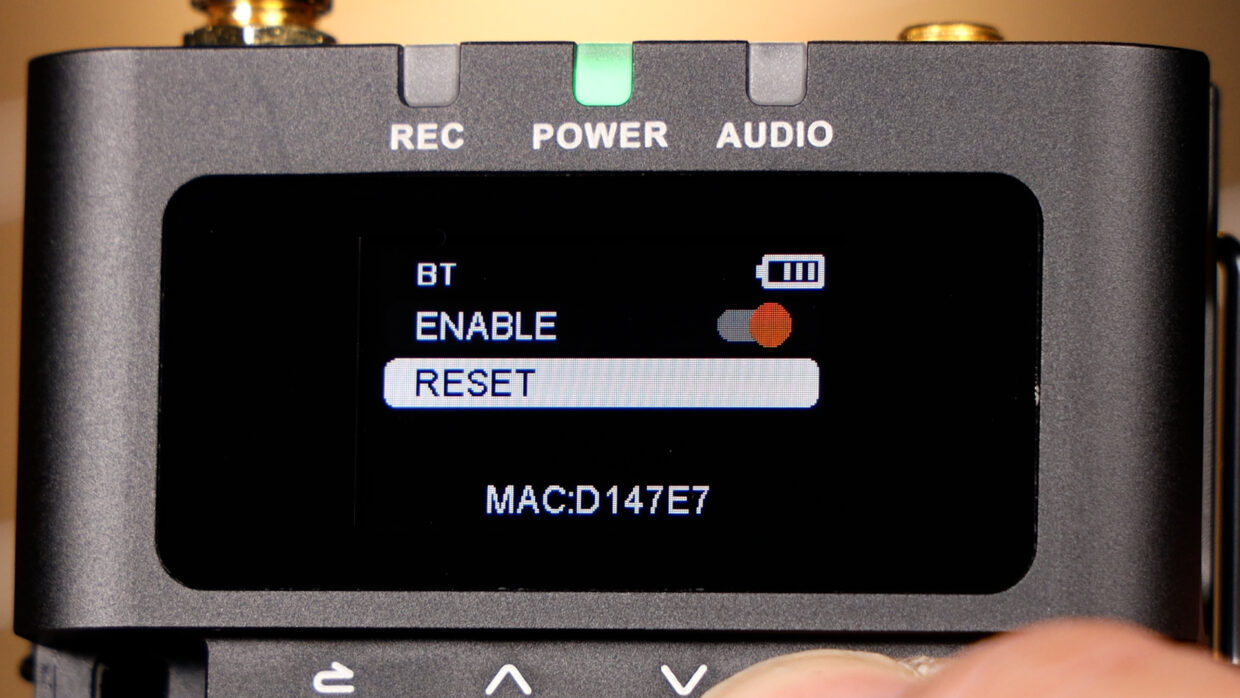
Bluetooth reset
If a device isn’t showing up, simply reset the Bluetooth on your device and wait for it to appear in the app.
Firmware Upgrade Tab
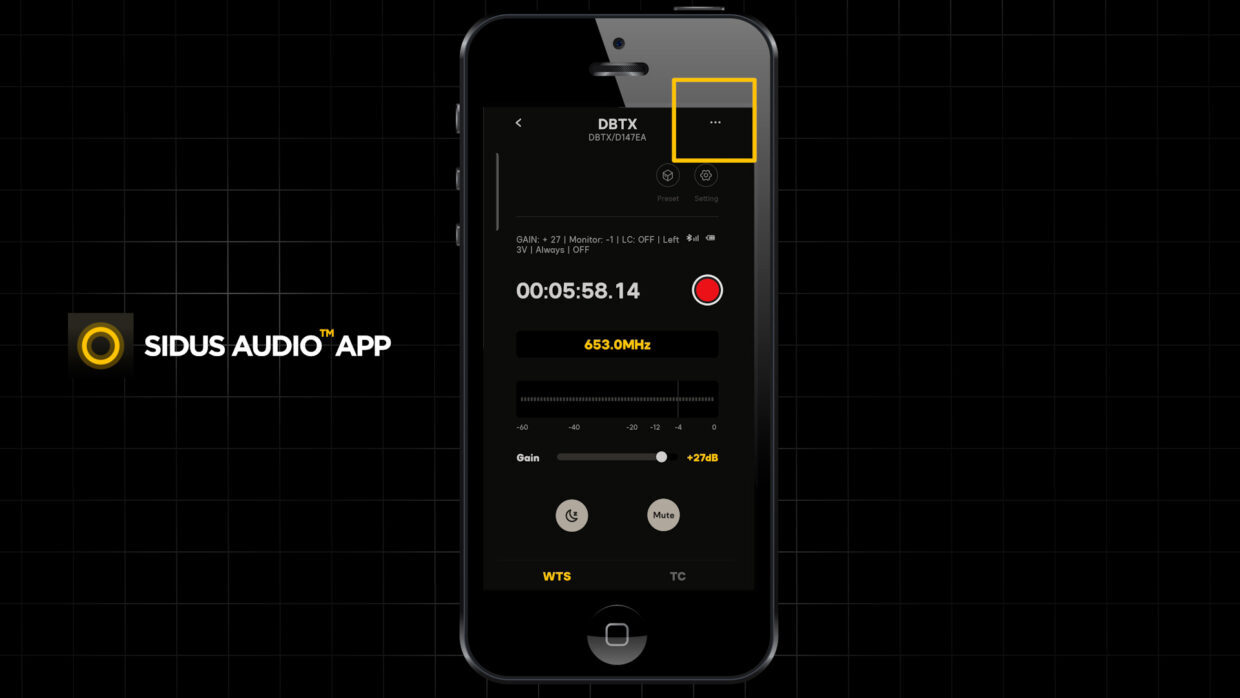
Once paired, select the device and click the three dots in the top right corner.
Firmware Upgrade Tab
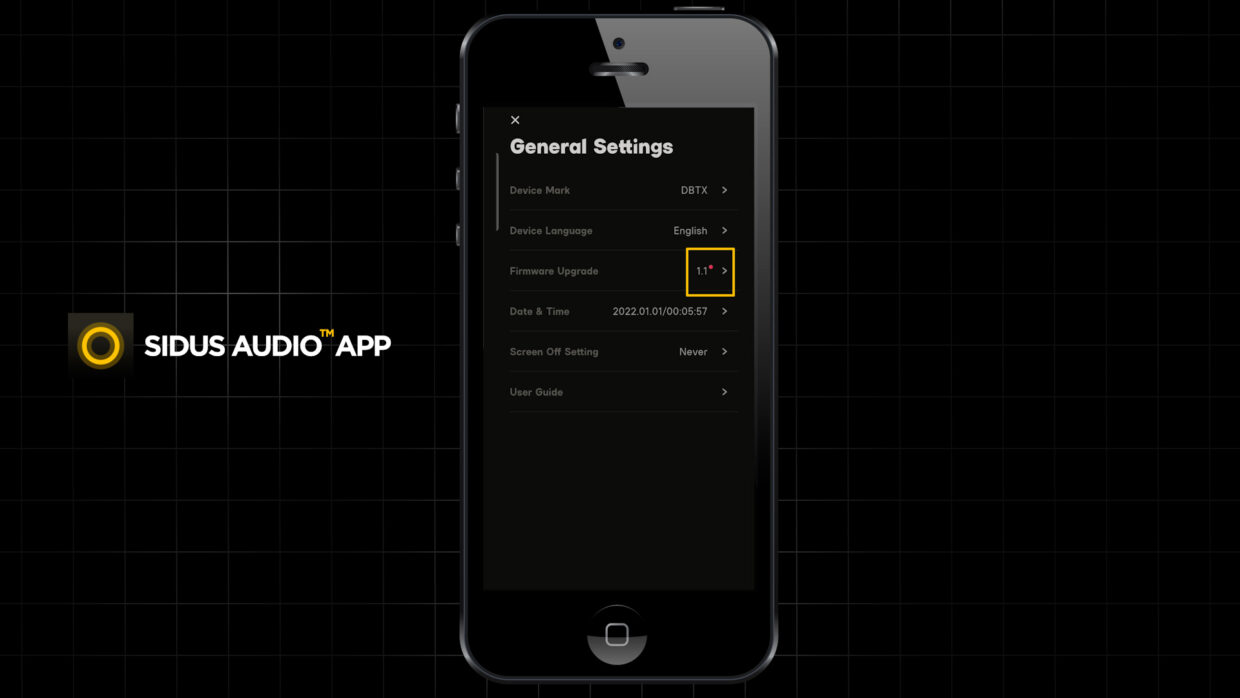
In this menu, you will see the firmware upgrade tab. If there is a red dot next to the firmware version, it means an update is available.
What’s included
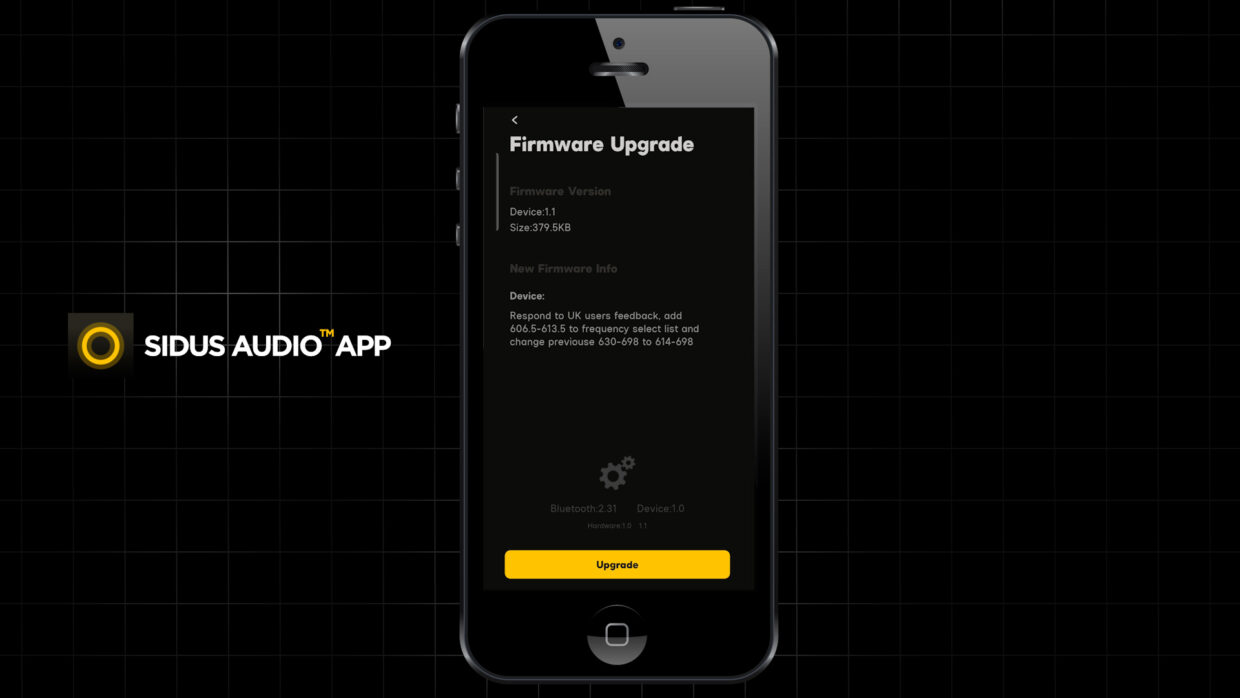
Click this tab to reveal info about the newest upgrade. It will list everything included in the update. Once you’re ready and have a stable internet connection, press Upgrade.
This might take a few minutes but once it’s complete, press confirm and you’ll be up to date.
You’re Up To Date!
Repeat this process for each of your devices and then get shooting!
Be sure to come back and check out our other THEOS tutorials!