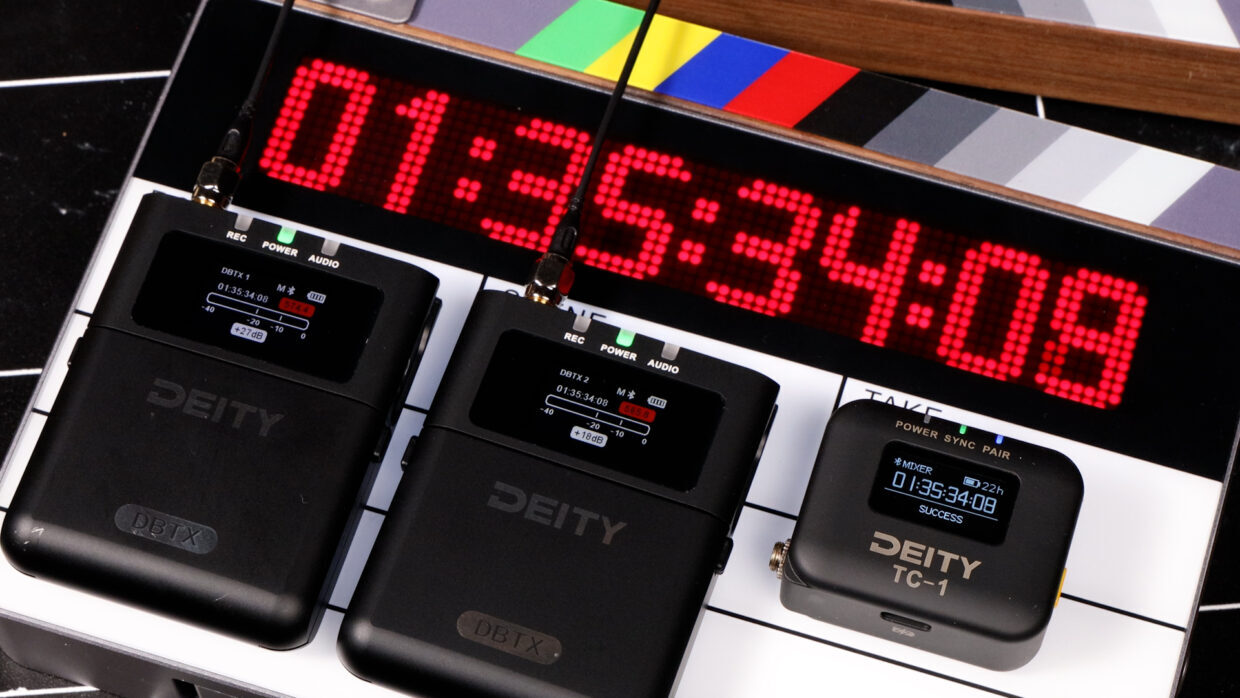
Timecode keeps your THEOS audio in perfect sync with your cameras. This guide shows you how to set the timecode mode, frame rate, and jam sync on your THEOS system.
Step-By-Step User Guide
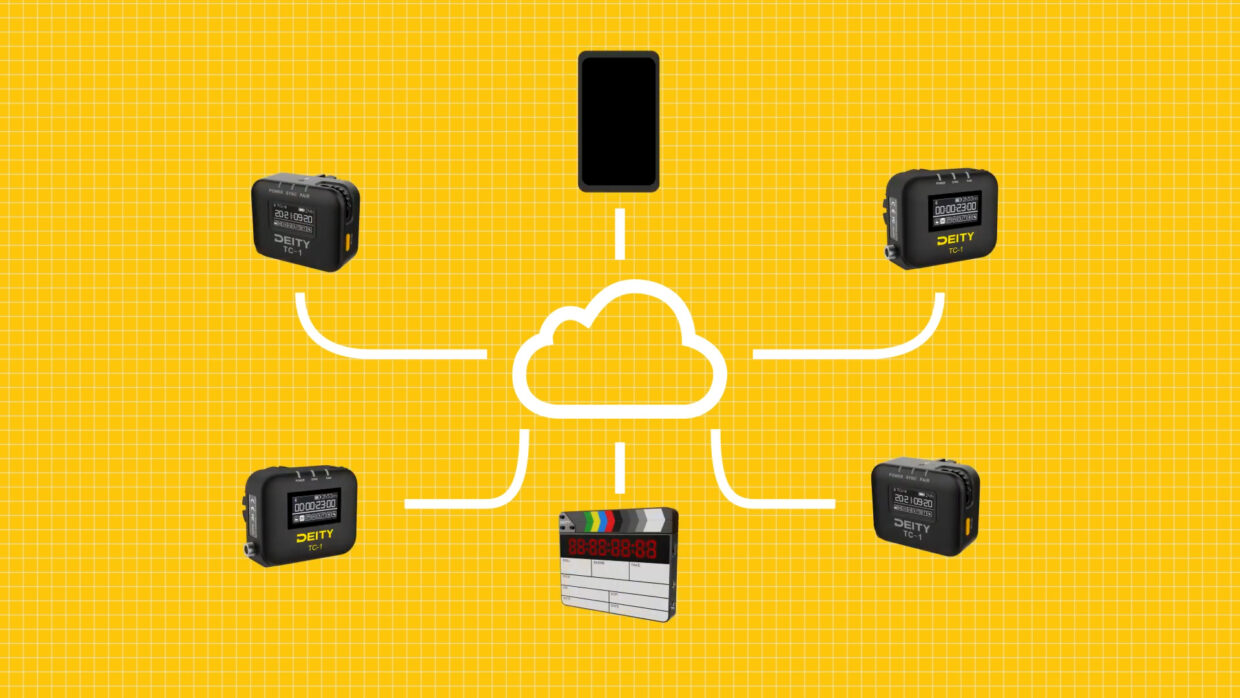
It’s all connected
The Deity THEOS ecosystem is fully compatible with Sidus Audio and the wireless timecode sync featured in our dedicated timecode devices.
So if you’re experienced with those menus, the Deity THEOS will operate in much the same way.
Step #1
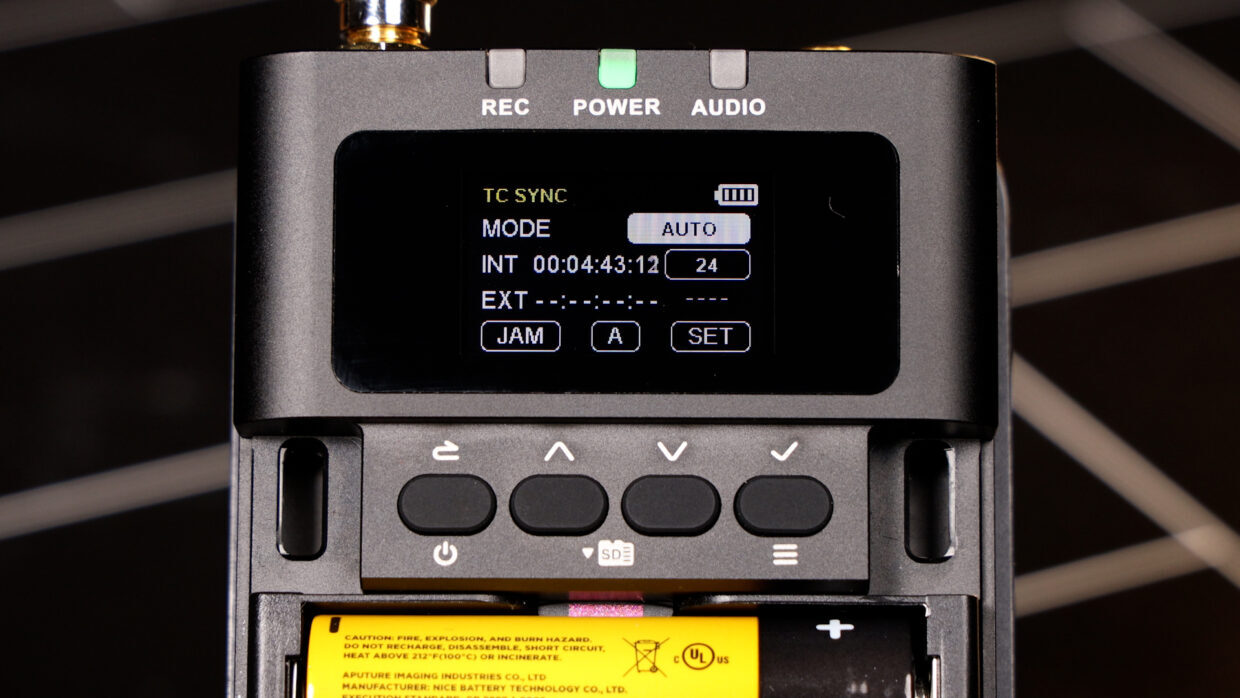
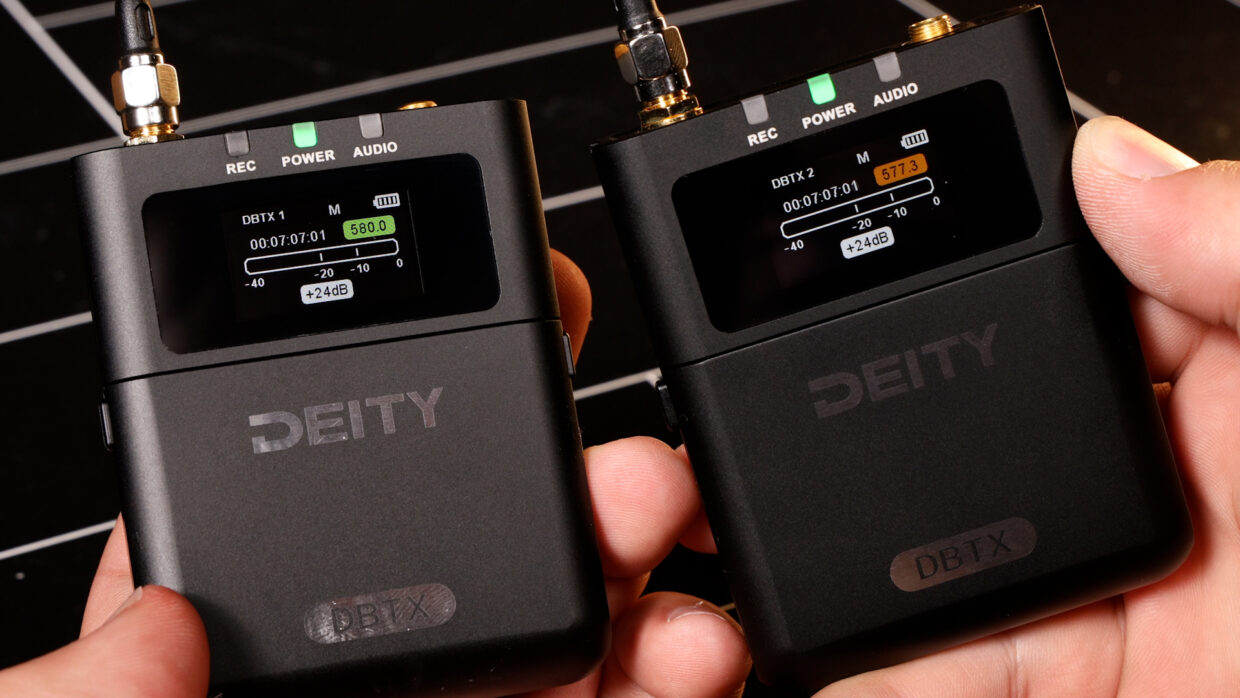
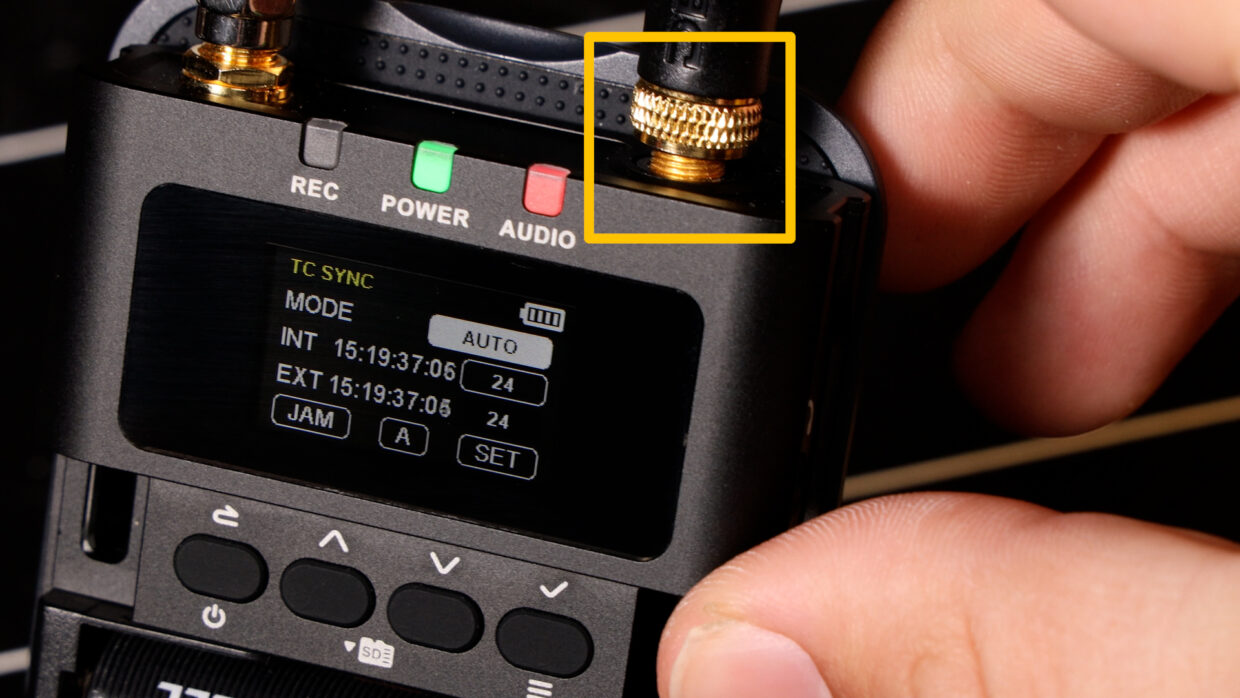
Firstly, go to the timecode menu on the DBTX transmitter and make sure it is set to “Auto” and that it is in the same group as your master unit. In this case, all of my timecode devices are in group “A”.
Step #2
As long as it’s in the same group, the transmitter will match the frame rate settings selected on the master unit.
You only need to worry about changing your frame rate settings on the transmitter if you are using another brand’s timecode box or are syncing two THEOS units together.
Step #3
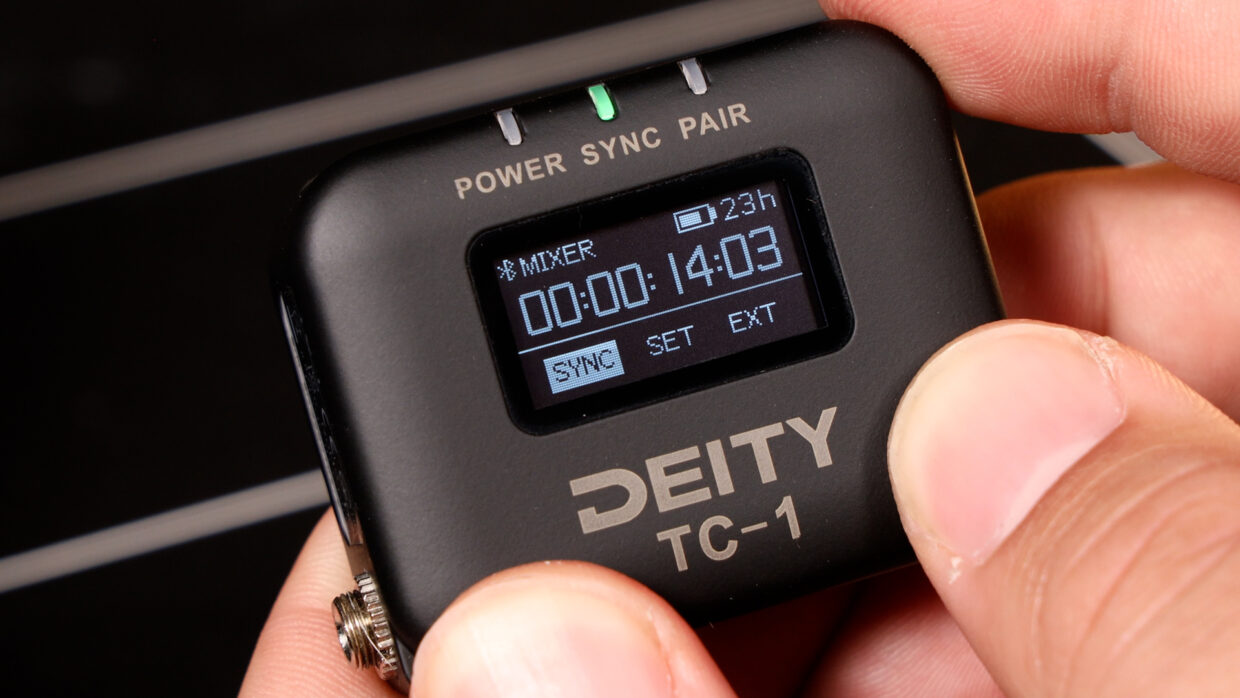
On your master unit, go to the “TC” tab and select “SYNC”.
Any device in the same group will receive this signal and now be in timecode sync.
Sidus Audio App
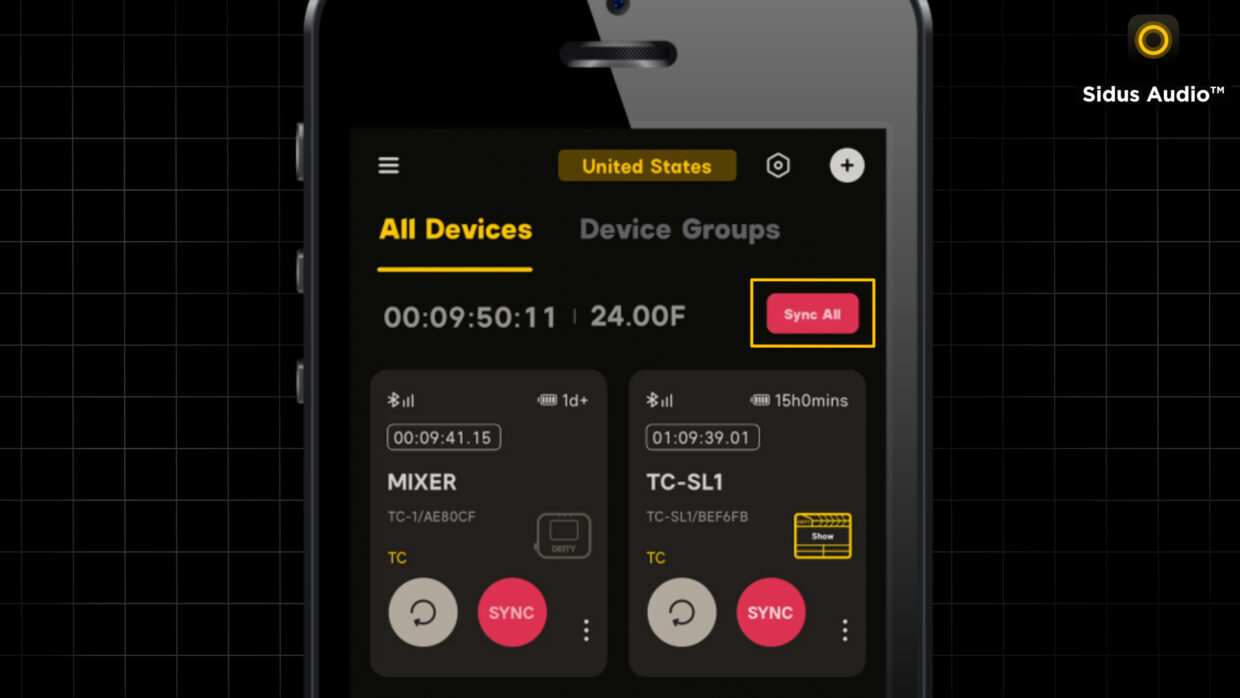
You can also do all of this from within the Sidus Audio app.
Once inside the app, if you notice that there is a flashing “Sync All” button, this means your devices are not synced to the master unit.
Step #1
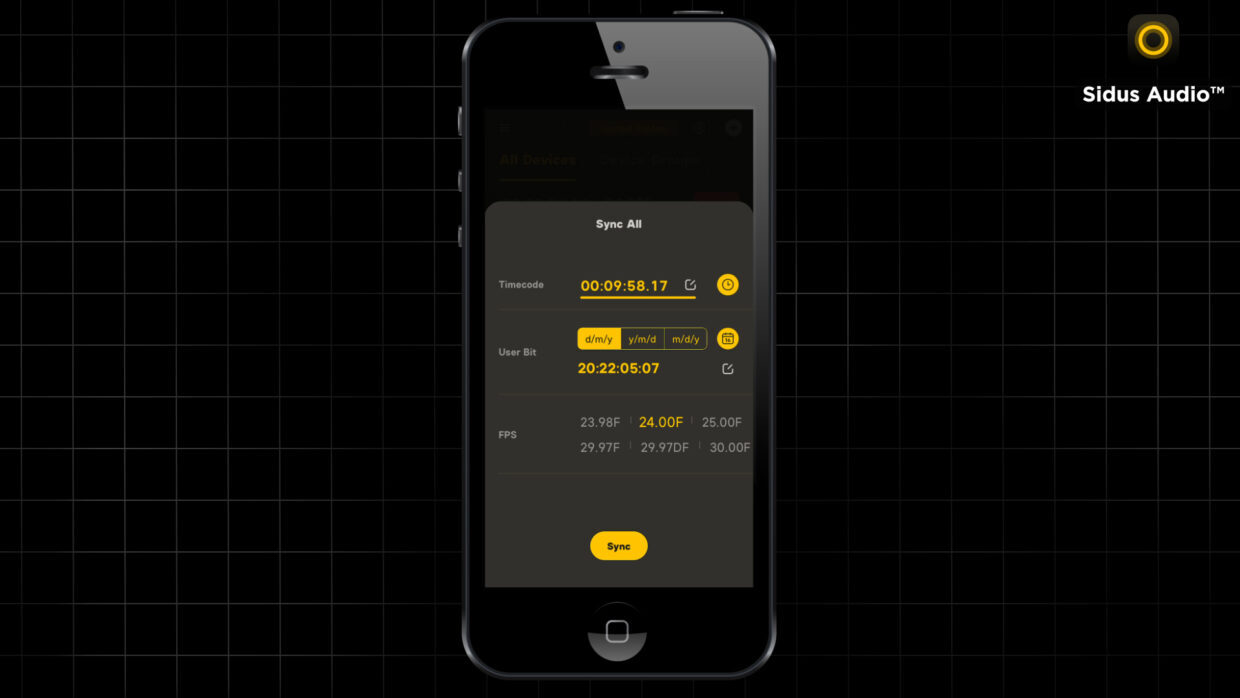
Simply press Sync All, set your timecode starting point or press the clock button for Time of Day, select your frame rate and press sync.
Your devices will then sync up and match settings to the master unit.
No Timecode Box? No Problem
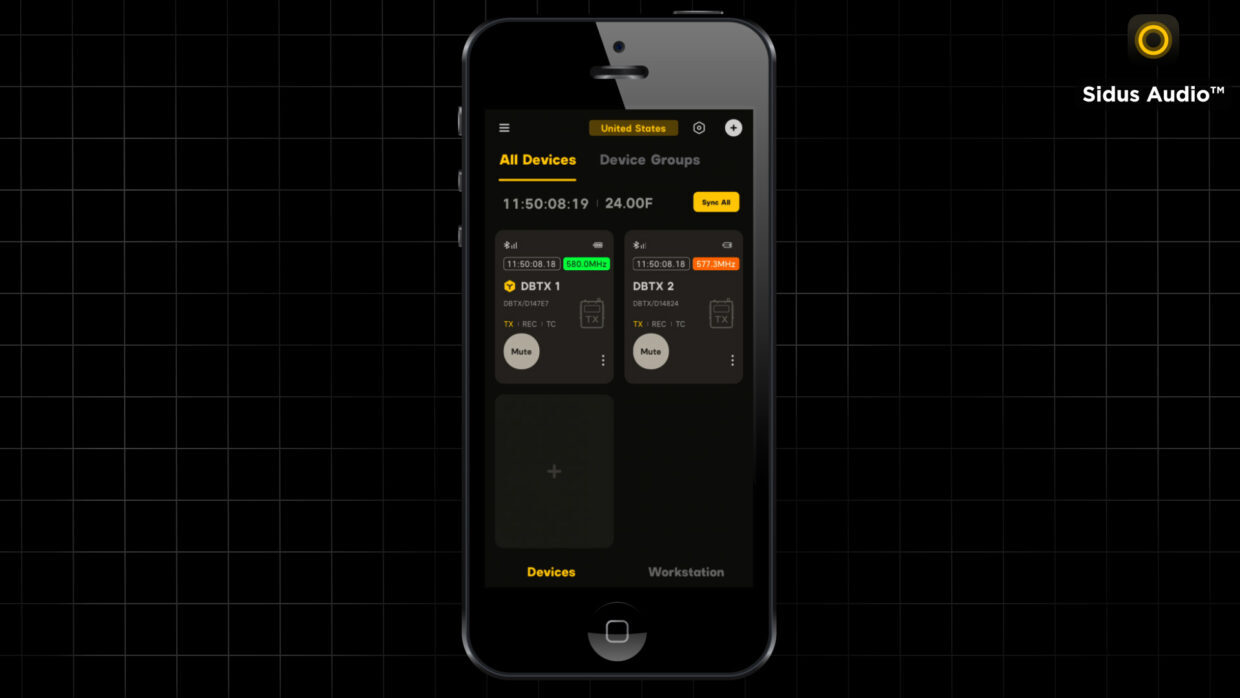
You don’t need a dedicated timecode box to get timecode on THEOS. You can sync just the THEOS devices using the Sidus app, even if you don’t have a dedicated timecode device.
Hardwire Jam
Say you have another brand’s timecode box and would like to use that as your master unit. Though it cannot connect wirelessly, you can still hardwire jam it.
Connect the timecode box to the THEOS DBTX using the 3.5mm input and then go to the TC menu.
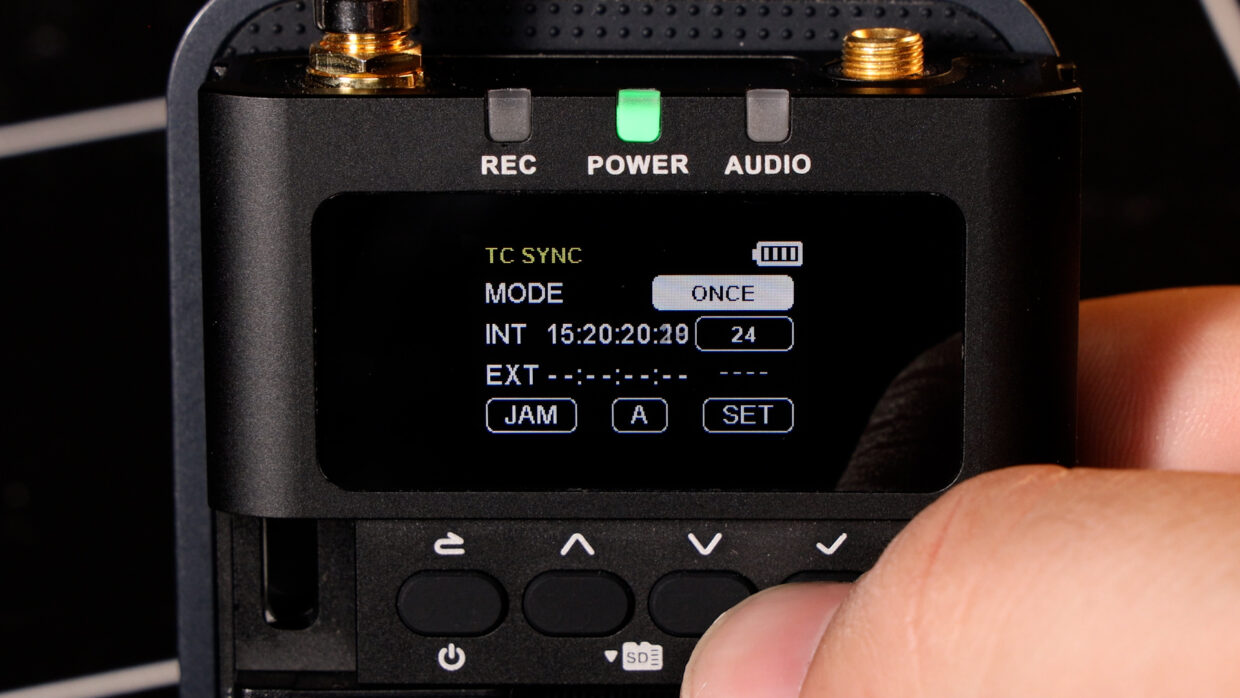
Inside this menu, you’ll see that the timecode and framerate have been updated to match the external timecode generator.
Protect Your Timecode
If you are in a congested shooting situation like a press conference or sports arena and are concerned that other film crews might override your timecode, set the mode to Jam Once and Lock instead of Auto Jam.
This will prevent anyone else from sending your TC-1 and/or DBTX new timecode wirelessly.
You’re Connected!
With that, your devices are now synced and ready to be used.
Be sure to come back and check out our other THEOS tutorials!