
Fitted with the 5-pin XLR connector, the DXTX carries two microphone inputs (MIC1 and MIC2), which lets it capture a stereo or dual-mic track straight to its internal microSD card. This guide explains how to set up the DXTX for stereo recording and manage the gain on each channel.
Step-By-Step User Guide
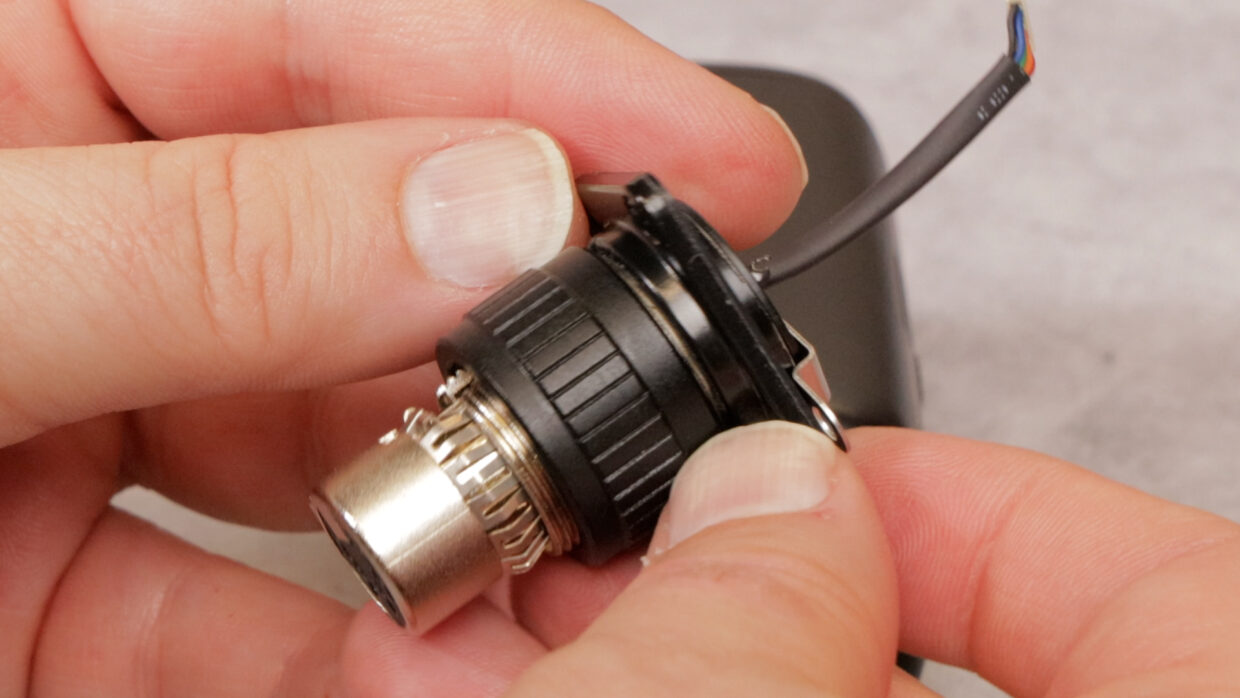
The 5-Pin Cone
Today, we’ll show you how to swap out the Deity DXTX cone for a stereo 5-pin cone.
The DXTX ships with a mono XLR connection; the 5-pin cone comes as an optional accessory.
Detaching the 3-pin Cone
Once you’ve picked it up, power down the device and remove the batteries.
Next, using a size T9 screwdriver, remove the two screws on the front of the unit.
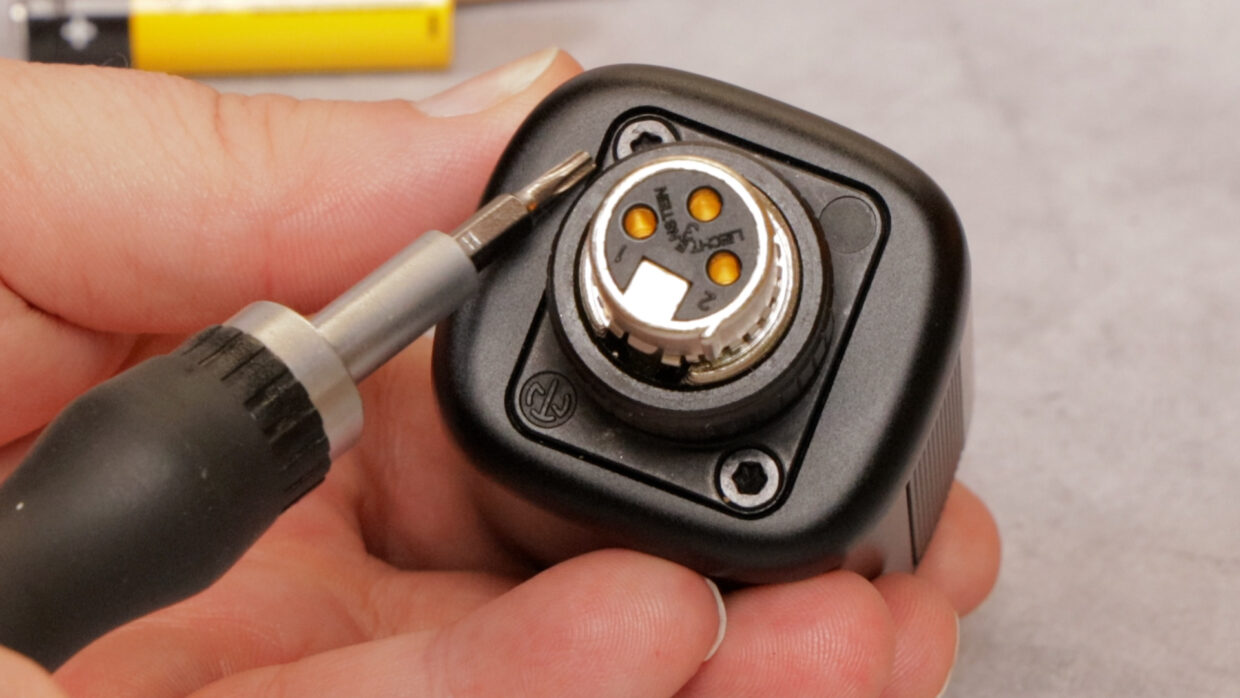
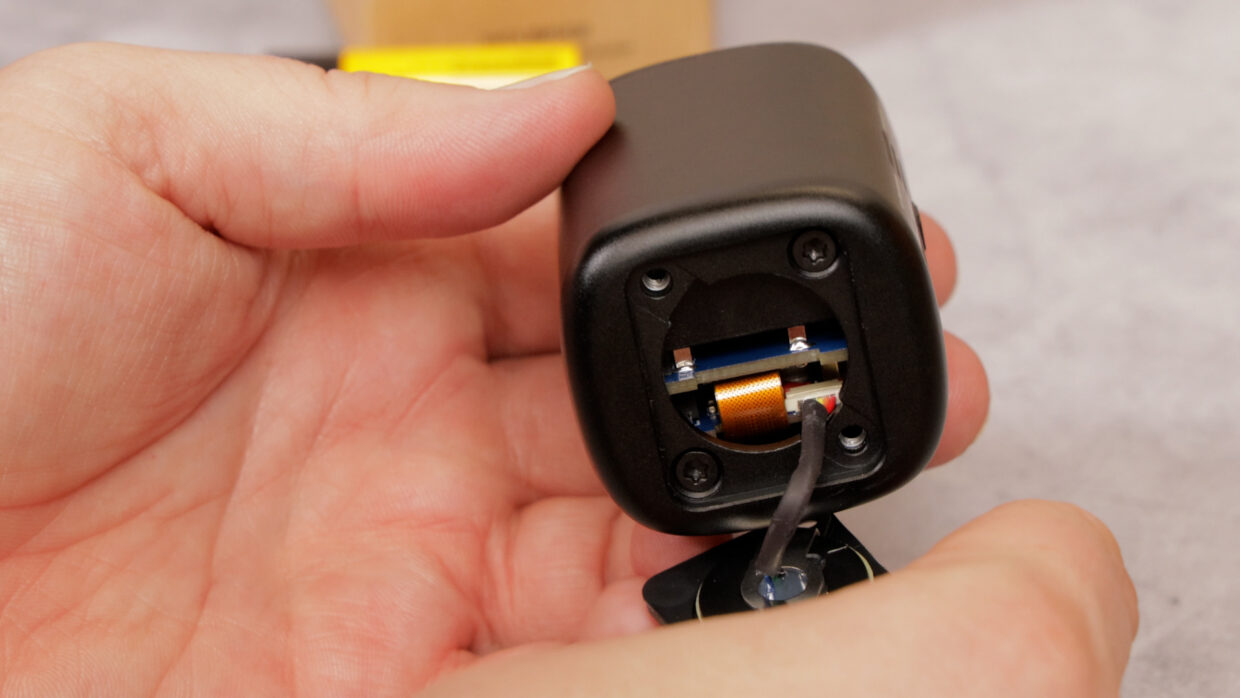
Pin Connection
Gently pull the cone off until you can see the pin connection. Set down the cone and pull out the connector cable; again, be gentle with this.
Seating the New Cone
Grab the 5-pin cone and double-check that your pins are aligned.
Then, seat the new connector as best you can with your hand, and then secure it fully with a screwdriver.
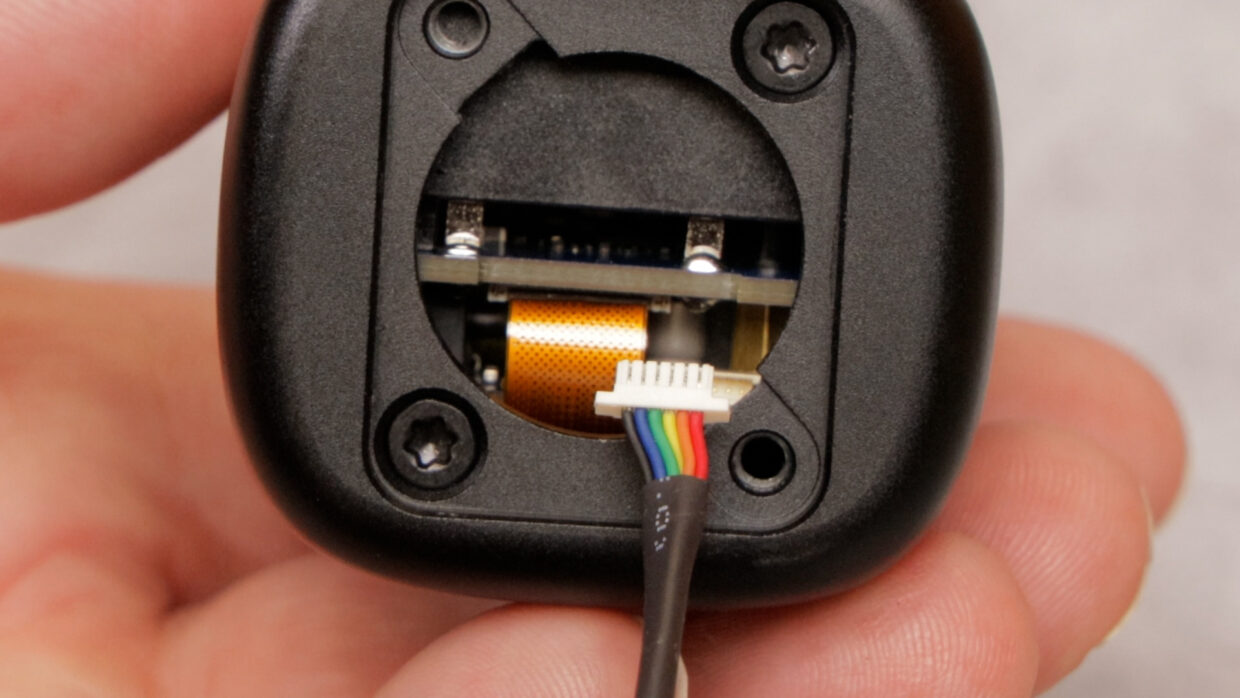
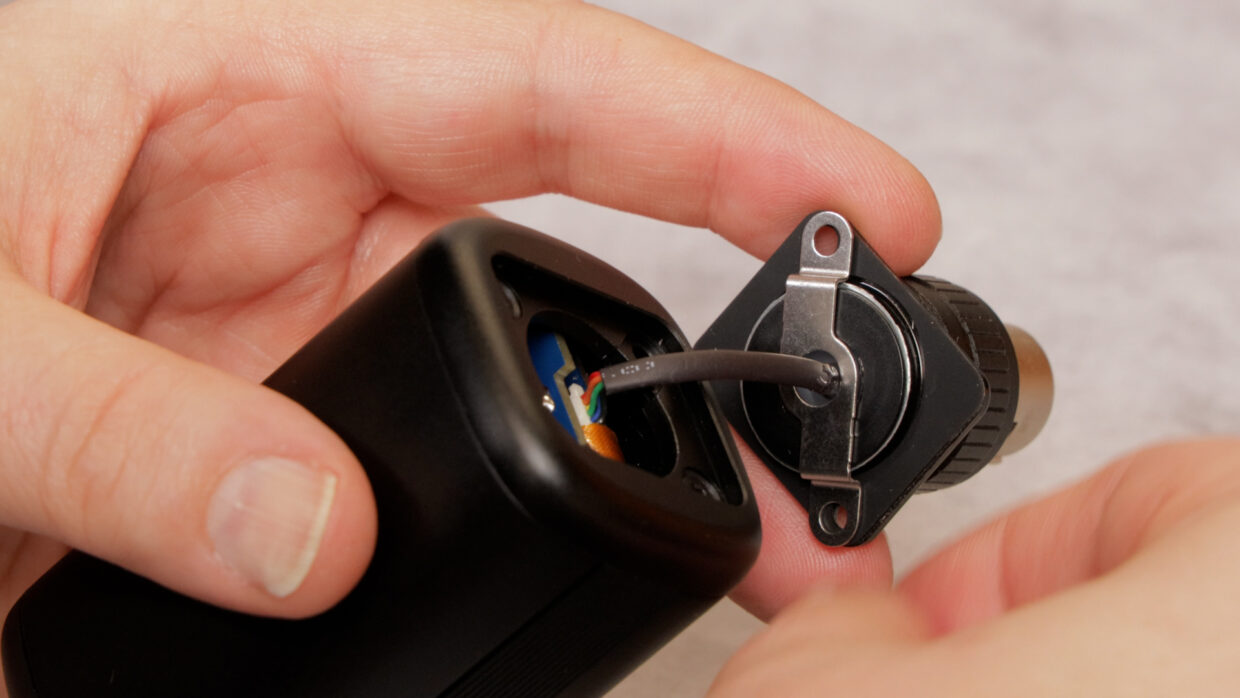
Mind the cable
Place the cone onto the unit, being mindful not to pinch the cable connection.
Finally, with the unit secured with your thumb, use the original screws to lock it in place.
Enabling stereo mode
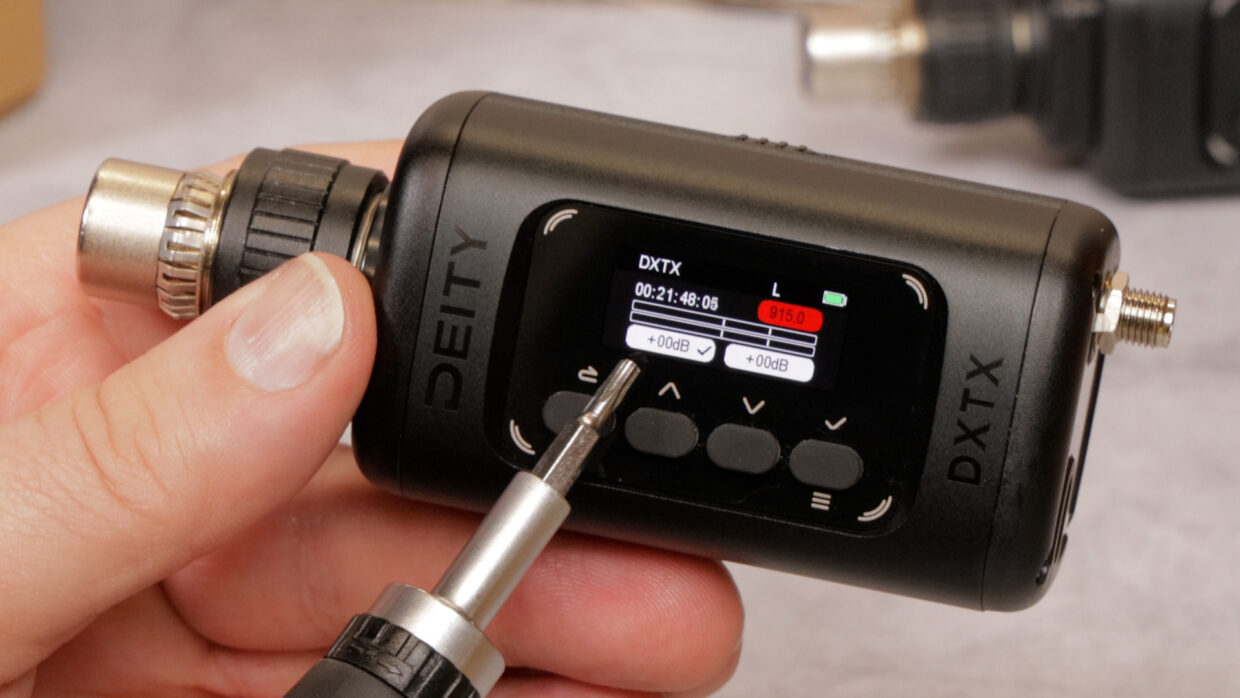
When you turn the unit on, you can see that it automatically boots in stereo mode.
From there, you can control the gain of each channel independently.
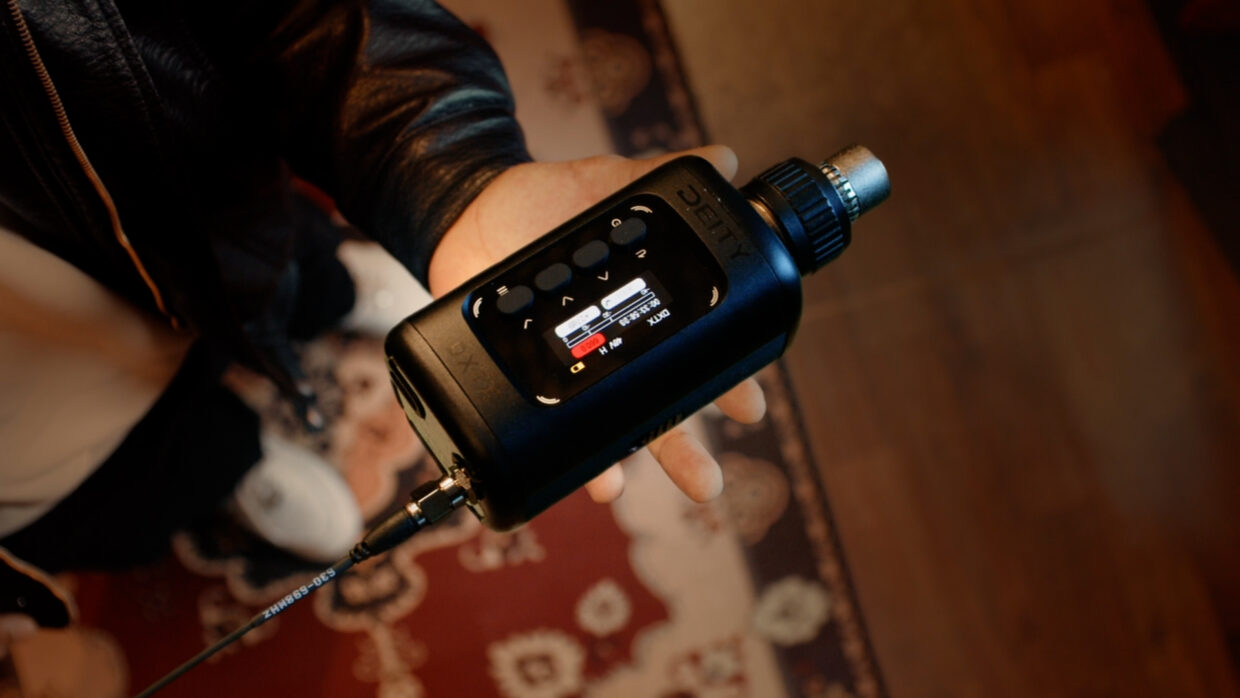
You’re up and running!
Your DXTX is now ready to get recording!
If you need help syncing the DXTX to our Deity TC-1 timecode generators, here is a User Guide!