
The Sidus Audio app extends what you can do with the TC-SL1: wireless sync, remote monitoring, device naming, firmware updates, and control over what the slate shows when it claps. This guide covers setting up the app, the Show Extras and Always features, and how to update firmware by the app or by USB drive.
Set Up the Sidus Audio App (iOS and Android)
Download the Sidus Audio app from the iOS App Store or Google Play to enhance the functionality of the TC-SL1. For more details, visit sidus.link/support/helpcenter.
The app communicates with your TC-SL1 over Bluetooth, so make sure Bluetooth is on. You must grant the app the permissions it needs. The Android version also asks for a location permission, which is only used to receive Bluetooth data from the TC-SL1. The app does not use or store your current location in any way.
Monitor and Control Your Slates
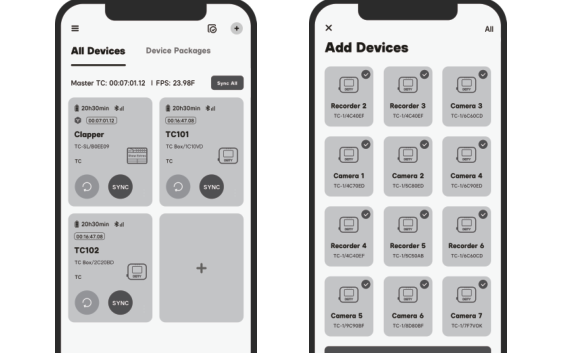
Open Sidus Audio, tap Add, and add all your TC-SL1 units to the monitoring list. From here you can monitor status, set up units, run firmware updates, and change basic parameters such as timecode, frame rate, device name, and TOD (Time of Day). Use the DID setting to give each unit a name so it is easy to identify in the list.
To wirelessly sync, add all units, then tap SYNC for each one to synchronize it to the chosen master TC-SL1 timecode or to the app's TOD timecode. See [TC-SL1] How to Sync Timecode for the full sync workflow.
Show Extras and Always Features on Clap
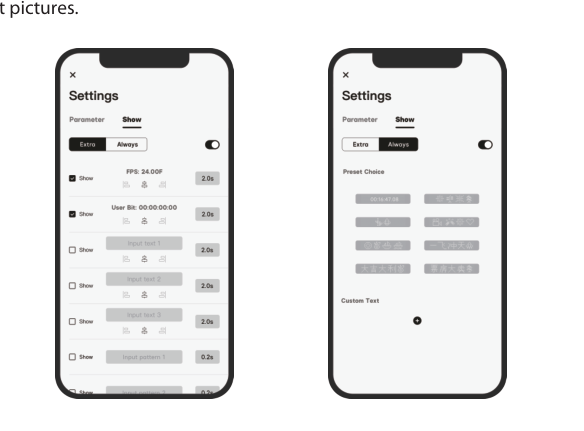
The Sidus Audio app lets you define what the slate displays on the clap. Using the Show settings, you can successively display each item for 0.2 to 5 seconds after the clap, including:
- FPS (frame rate)
- User Bit
- Clapped TC (the clapped timecode)
- Custom text
- Preset pictures
Firmware Update
Update via USB Drive
You can update the firmware with a U disk (an exFat or Fat32 USB flash drive):
- Download the latest firmware from the Deity website and place it in the root directory of the U disk.
- Use the included USB-C to USB-A Firmware Update Adapter to connect the U disk to the USB-C input port.
- Select the UPDATE option from the menu and follow the on-screen instructions.
- When the progress bar reaches 100%, the TC-SL1 restarts automatically.
The firmware version is reflected in the FIRMWARE item under General Settings, where you can confirm the update.
Update Over the Air (OTA)
The TC-SL1 also supports firmware updates through the Sidus Audio app OTA process. Connect the unit in the app and follow the prompts to update wirelessly.