
The TC-SL1 uses a precision oscillator that generates timecode with a high degree of accuracy, drifting approximately less than 1 frame per 48 hours. This guide explains how to make the TC-SL1 the timecode source for your set, and how to jam-sync cameras and recorders by cable, by wireless master sync, or through the Sidus Audio app. We recommend feeding every recording device with the timecode from the TC-SL1 to keep audio and picture in sync for the entire production.
Choose a Working Mode

Rotate the function control wheel to the Mode (M) icon and short-press to select one of three modes:
- Master Run - the TC-SL1 is the timecode source and outputs to other units.
- Auto Jam - the TC-SL1 waits to be jam-synced by an external source.
- Jam Once And Lock - the TC-SL1 locks after being synced once (mode changes from Jam1 to JMD).
For full detail on each mode, see the [TC-SL1] Menu & OLED Display Reference.
Cable Sync
You can use the included 5P timecode cable (except on the EU version) or a suitable adapter cable to jam the TC-SL1 to an external timecode source. Set the TC-SL1 to Auto Jam or Jam Once And Lock, then connect the cable. When connected to the 5P timecode cable, the TC-SL1 automatically detects the incoming frame rate and takes over the incoming timecode immediately on jam-sync.
Deity recommends Deity timecode cables C13 or C14, or a spare 6.35mm TRS to 3.5mm TRS cable.
Wireless Master Sync
If you do not have a mobile device at hand, you can synchronize TC-SL1 units with each other over wireless master sync.
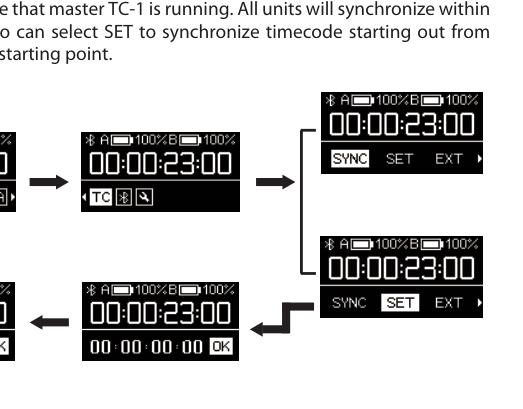
- Start one TC-SL1 in Master Run mode.
- Set all other TC-1 and TC-SL1 units to Auto Jam or Jam Once And Lock mode.
- Set all units to the same channel (for example, A group).
- On the master unit, enter the TC setting and select SYNC to perform the wireless master sync while the timecode is running.
All units will synchronize within a few seconds. You can also select SET to synchronize timecode starting from 00:00:00:00 or a custom starting point.
Jam the Master From an External Source
During Master Run mode, the TC-SL1 can also be jam-synced by an external timecode source or another TC-1 over the 5P cable. To make the master follow an external source, enter the TC setting, select EXT, and the TC-SL1 will detect the external timecode and frame rate automatically. Press the function control wheel to select Jam and synchronize to the external source.
Wireless Sync via Sidus Audio
The Sidus Audio app can wirelessly sync a number of TC-SL1 units over Bluetooth (tested with more than 20 units). Add all your TC-SL1 units to the monitoring list, then tap SYNC for each unit to synchronize it to the chosen master TC-SL1 timecode or to the TOD (Time of Day) timecode the app fetches from the mobile device. Before wireless syncing, use the DID setting to name each unit so they are easy to tell apart. For the full app walkthrough, see [TC-SL1] Sidus Audio App, Show Extras on Clap & Firmware Update.
Runtime after power down: the TC-SL1 keeps timecode running for 6 hours after you power it down, so a brief battery swap or shutdown will not lose your jam.