
The Deity SPD mini uses its TFT screen to report exactly what is happening on the input side. The layout changes depending on what you have plugged in, whether that is a smart battery, a non-smart battery, a USB-C PD source, or a combination. This guide explains each screen so you can read voltage, battery percentage, and runtime at a glance, and recognize the Overvoltage warning if an input goes out of range.
Smart Battery Interface
When a smart battery is connected, the screen reports rich status pulled from the battery itself.
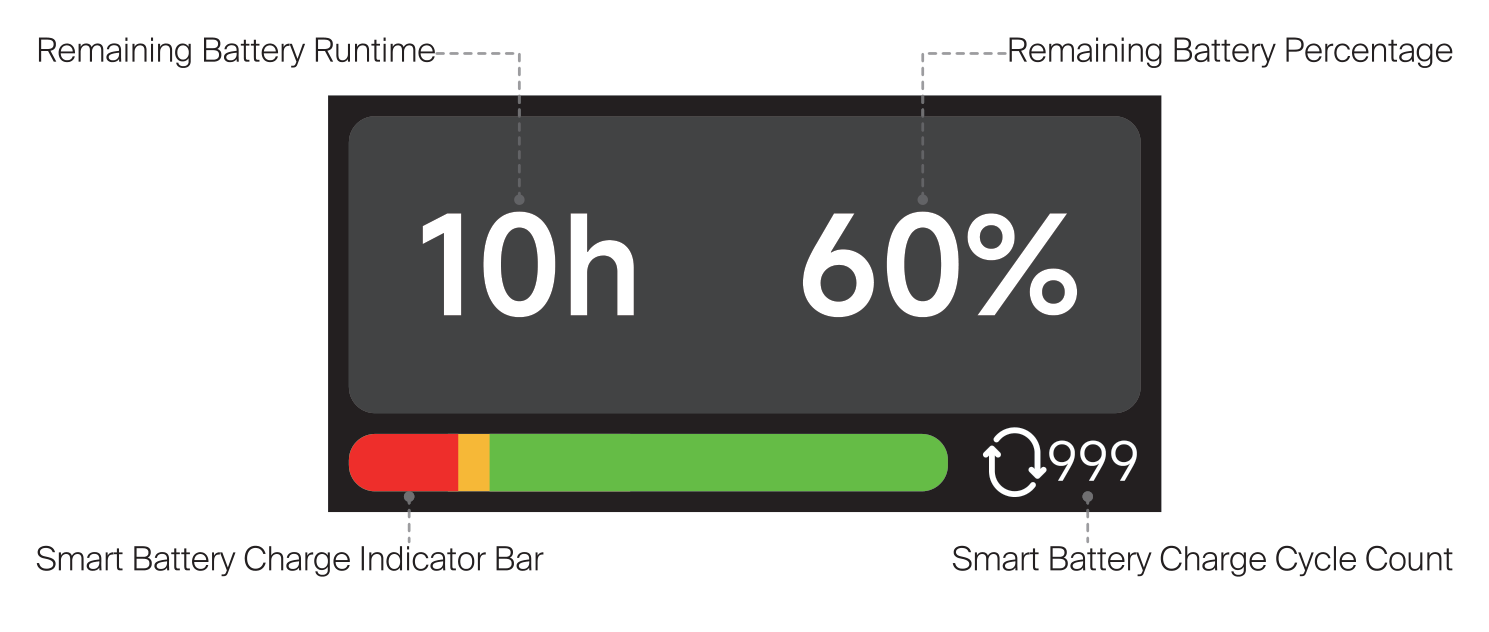
- Remaining Battery Runtime: estimated time left at the current draw (for example, 10h).
- Remaining Battery Percentage: the battery's remaining charge (for example, 60%).
- Smart Battery Charge Indicator Bar: a color bar that fills from red to green with the state of charge.
- Smart Battery Charge Cycle Count: how many charge cycles the battery has completed (for example, 999).
Non-Smart Battery Interface
When a non-smart battery or a plain external supply is connected, the SPD mini cannot read percentage or cycle data, so it shows the measured input voltage instead.
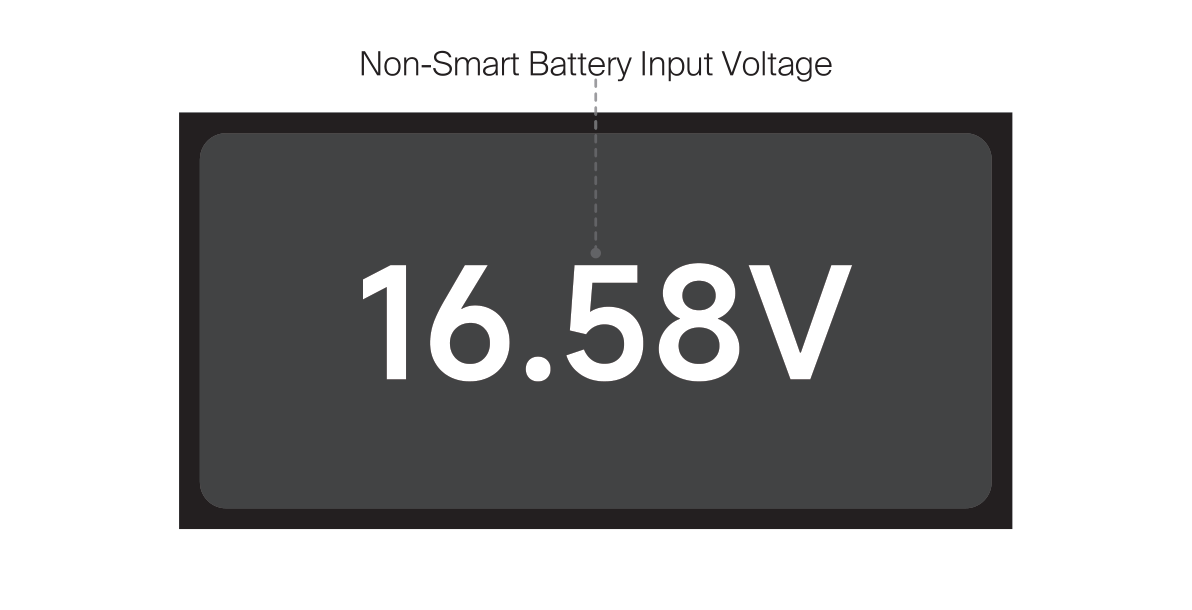
- Non-Smart Battery Input Voltage: the live input voltage from the source (for example, 16.58V).
USB-C Input Interface
When power comes in over USB-C, the screen shows the negotiated PD protocol and voltage.
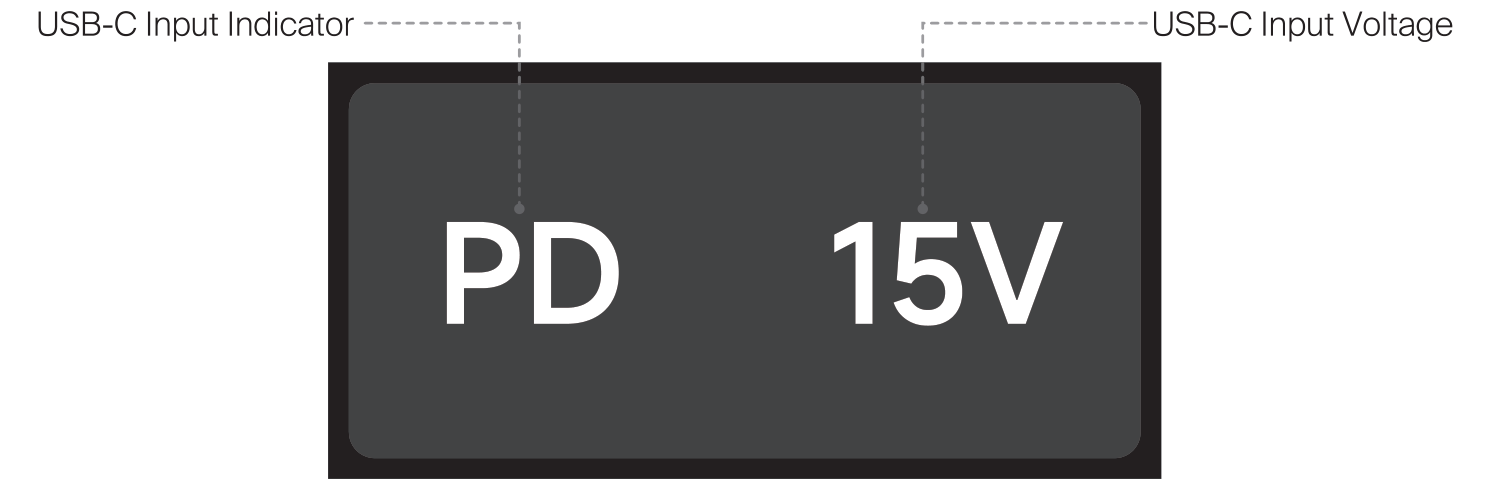
- USB-C Input Indicator: shows PD when a Power Delivery source is connected.
- USB-C Input Voltage: the negotiated input voltage (for example, 15V).
Combined Input Interfaces
If you feed the SPD mini from two sources at once, the screen splits to show both.
Smart Battery + USB-C Input
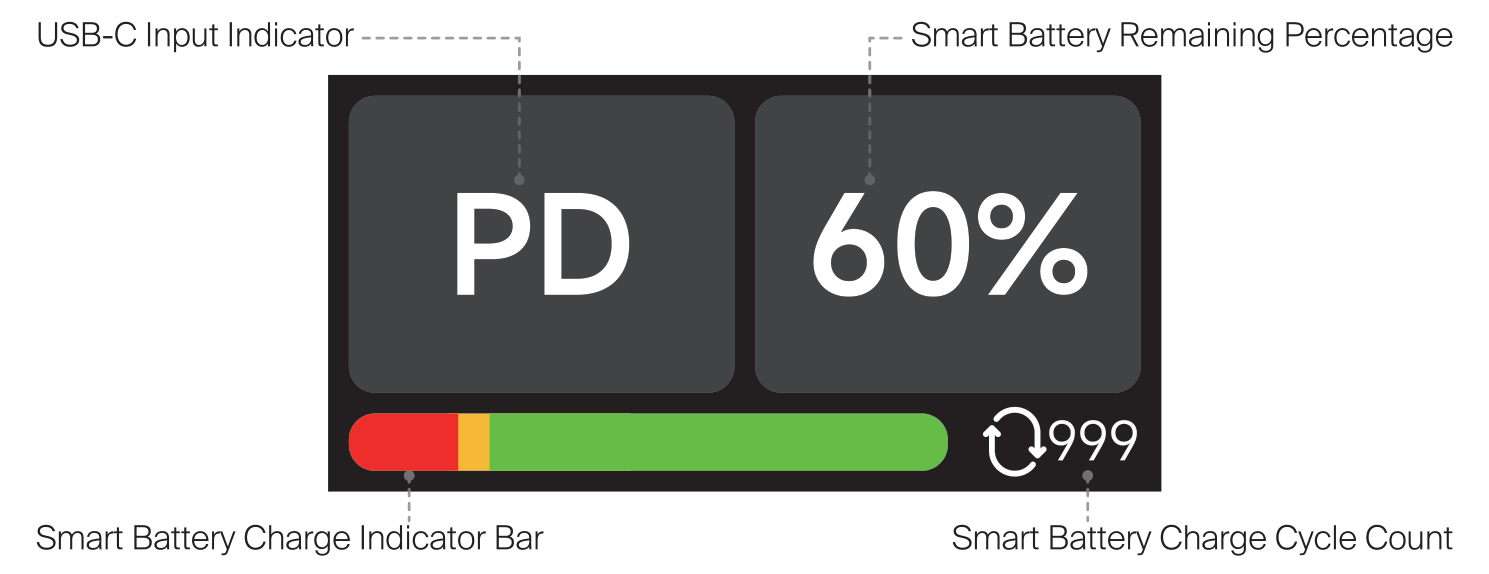
- USB-C Input Indicator (PD) on the left.
- Smart Battery Remaining Percentage on the right (for example, 60%).
- Smart Battery Charge Indicator Bar and Charge Cycle Count along the bottom.
Non-Smart Battery + USB-C Input
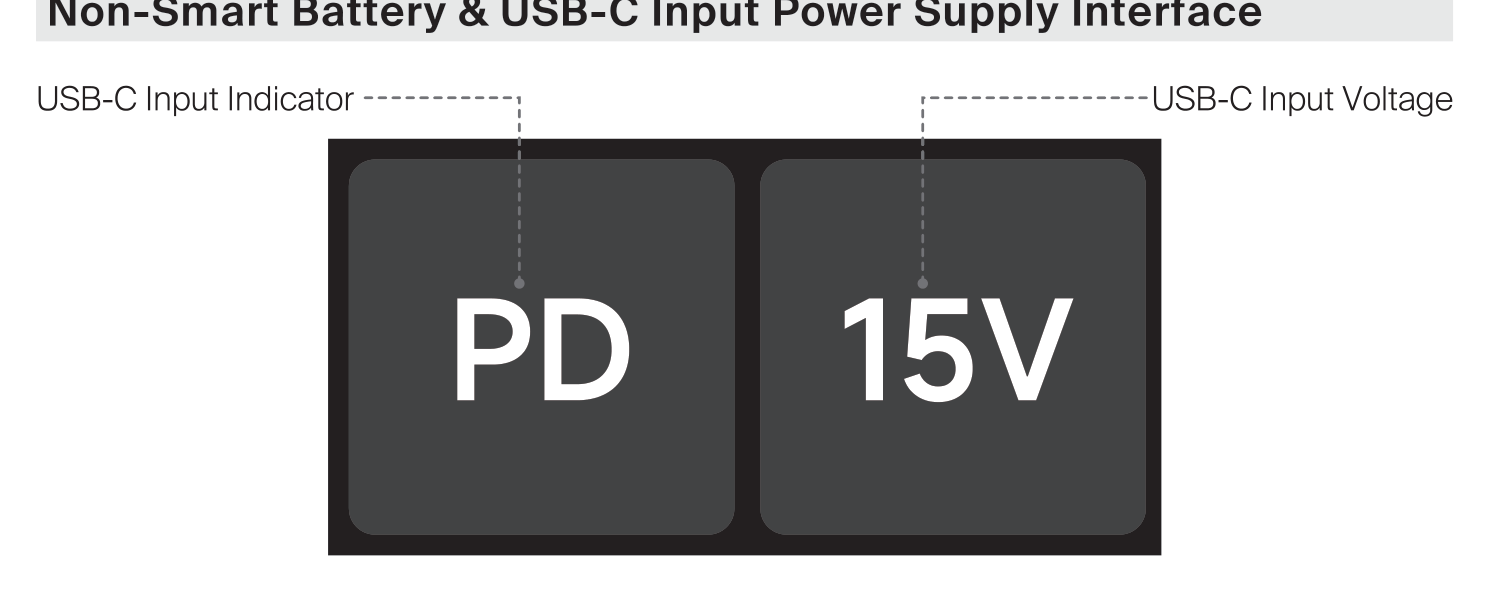
- USB-C Input Indicator (PD) on the left.
- USB-C Input Voltage on the right (for example, 15V).
Input Overload (Overvoltage)
When the power input voltage reaches or exceeds 18V, the screen displays Overvoltage to indicate an input overload. At this point, all output power transmission is stopped to protect your connected gear. Remove or correct the offending source and bring the input back within the 12V to 18V range to resume normal operation.
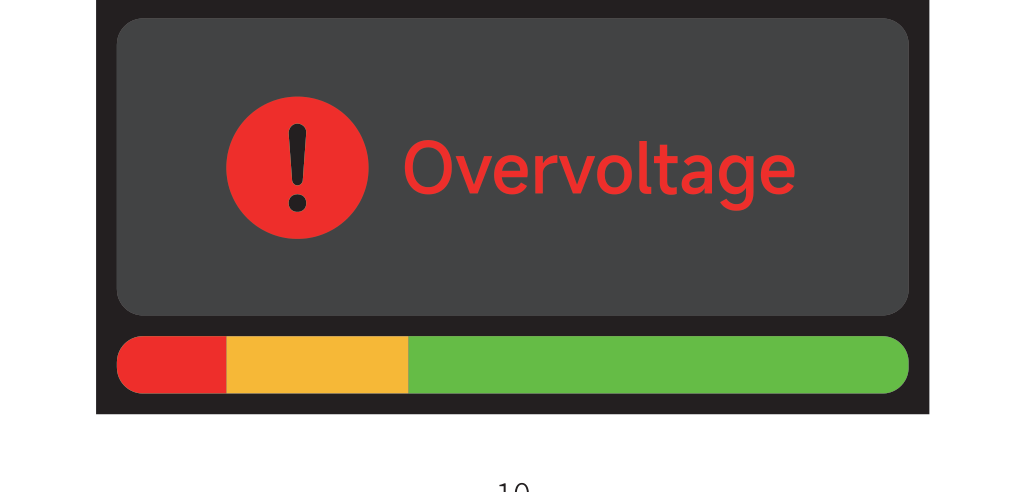
For the indicator colors that correspond to each input voltage, see the Power Input Indicator section in [SPD-Mini] Hardware, Ports & Powering the Unit.