
A timecode slate is a working tool, so keeping it clean and protected extends its life on set. This guide shows how to properly clean your Deity TC-SL1, apply a screen protector, and care for the writing surface so it stays reliable shoot after shoot.
Step-By-Step User Guide
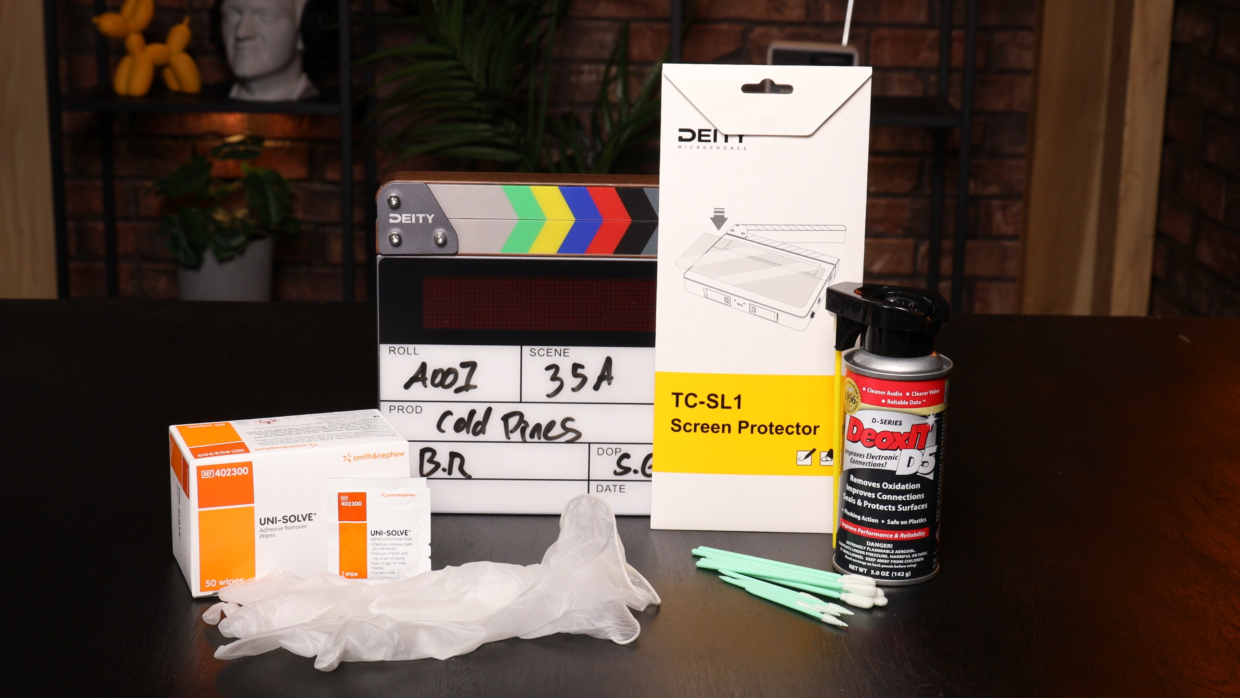
Protect your purchase
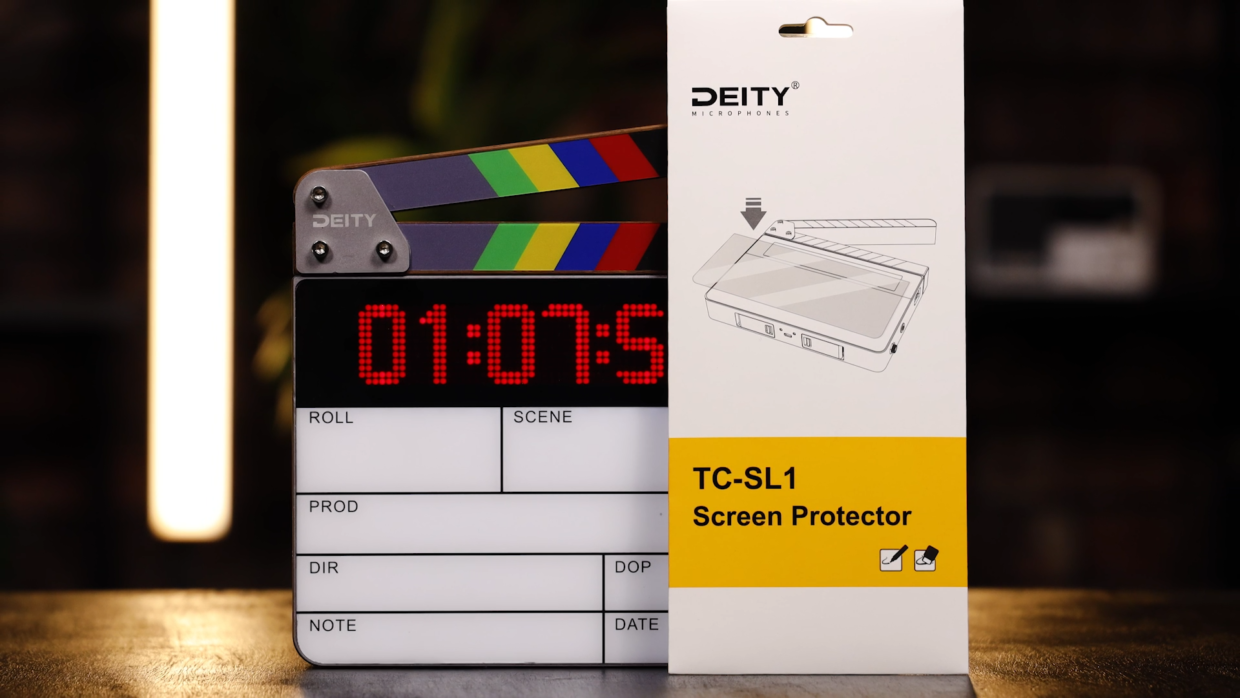
In this tutorial we’re gonna show you how to properly clean your Deity TC-SL1 and apply a TC-SL1 screen protector, freeing you up to use a permanent marker and prolonging the life of your slate.
Step #1
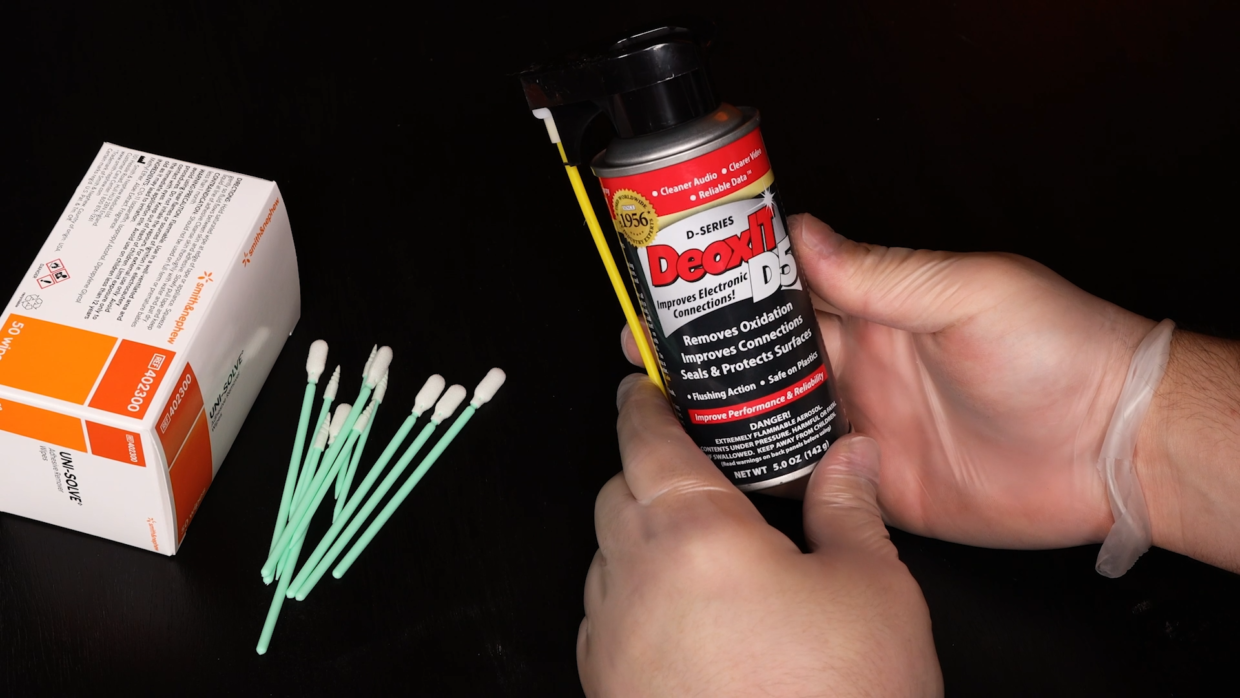
We’ll be using a variety of chemicals today. They’re safe for your skin but we’ll be wearing gloves to minimize oil from our fingers.
Step #2
First, prep your slate by turning it off, ejecting the batteries, and removing any old tape or hook-n-loop.
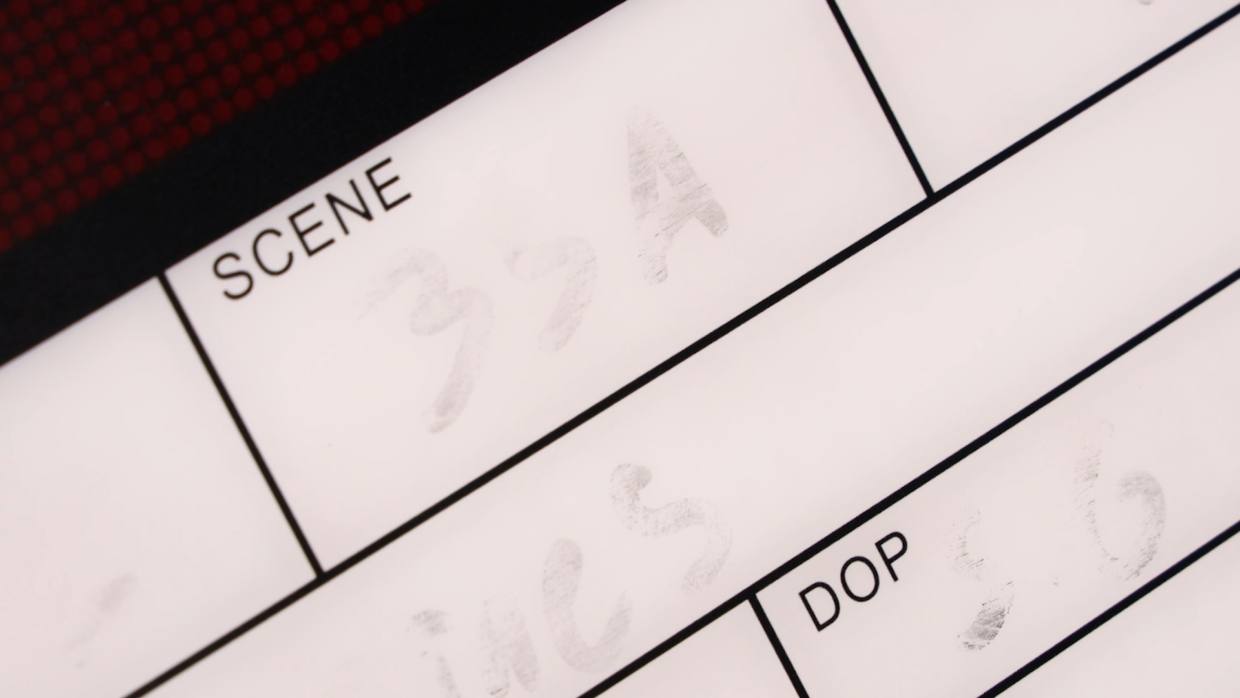
Most marker ink will come off with the use of a microfiber cloth and whiteboard cleaner but if the stain is especially tough, you’ll need some Uni-Solve wipes.
Step #4
Remove it from the packaging and give the whole face a rub down. Let it sit for a few seconds and then wipe away the ink with a microfiber cloth.
This chemical is tough enough to remove major stains without etching the acrylic surface, keeping your slate safe and sound.
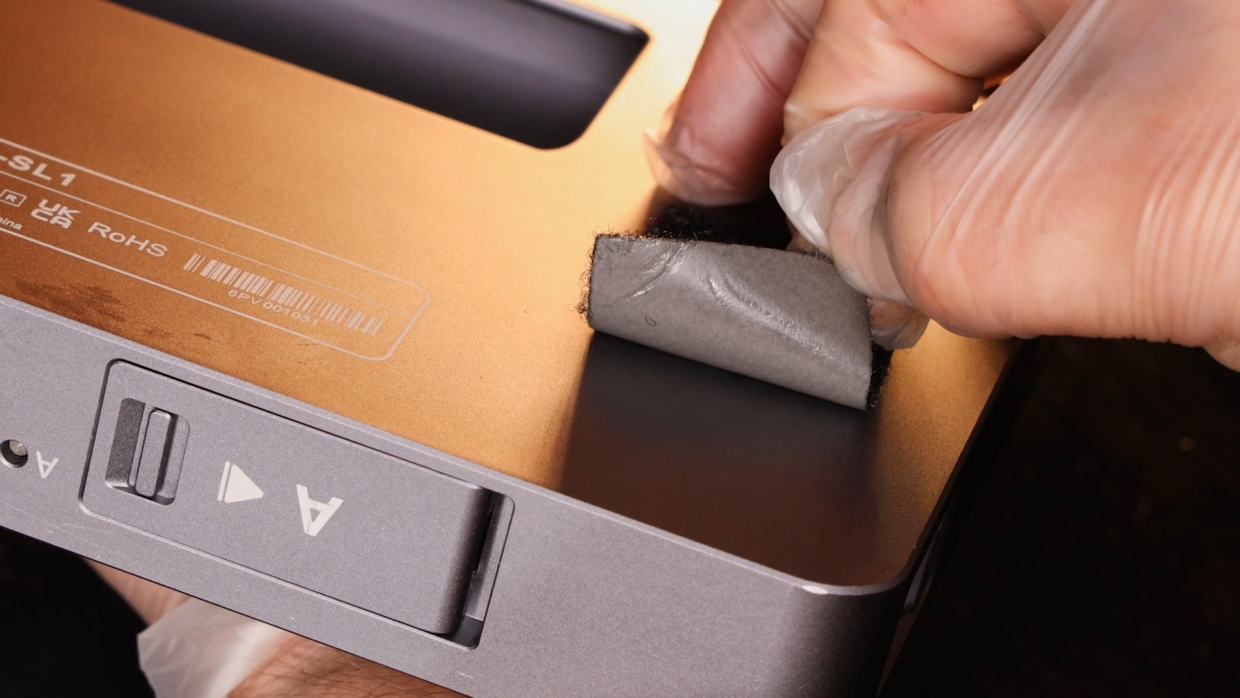
If you use hook-n-loop or certain tapes on your slate, adhesive residue can often be left behind.
To clean this use the same Uni-Solve wipes as before.
Step #6
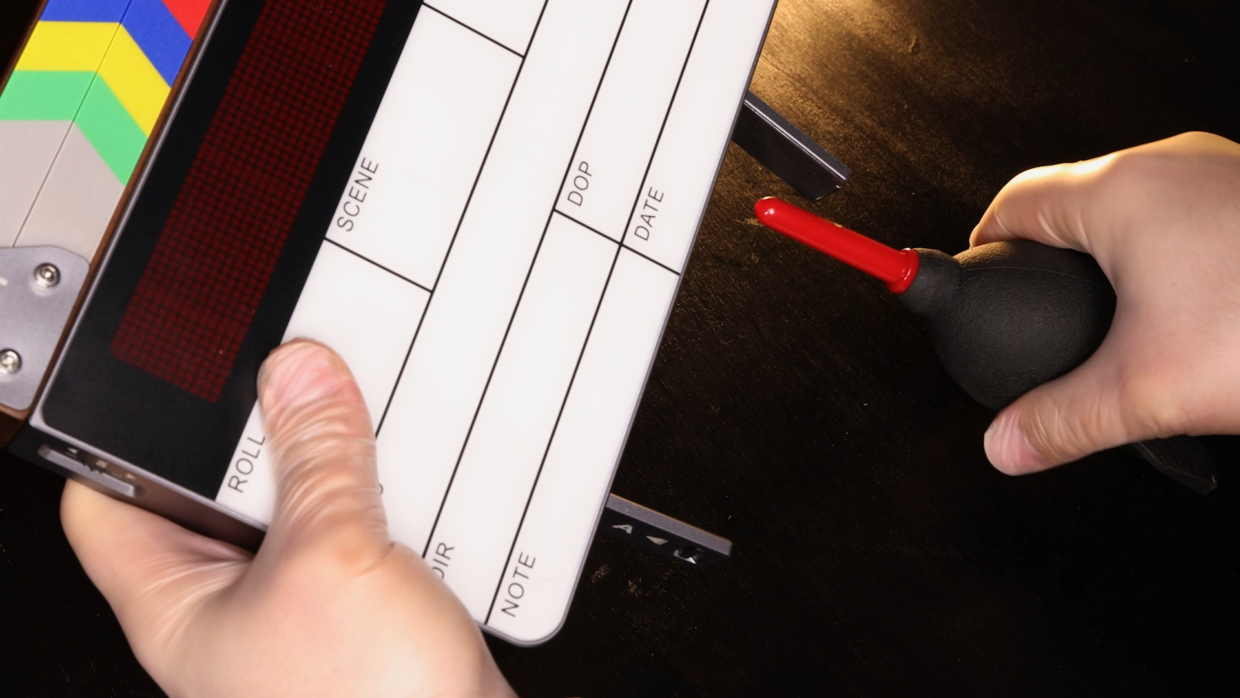
If you have any dust build-up in the cable or battery ports, start by using an air blower.
Keep these ports face down so the debris properly falls out.
Step #7
To get rid of heavy build-up or to clean the electrical connections of the slate, get yourself a set of precision cleaning swabs and a can of DeoxIT.
Spray the DeoxIT onto a scrap of old packaging and dip the cleaning swap into the fluid. You don’t want it soaked, just damp enough, and then gently scrub the electrical ports and dials.
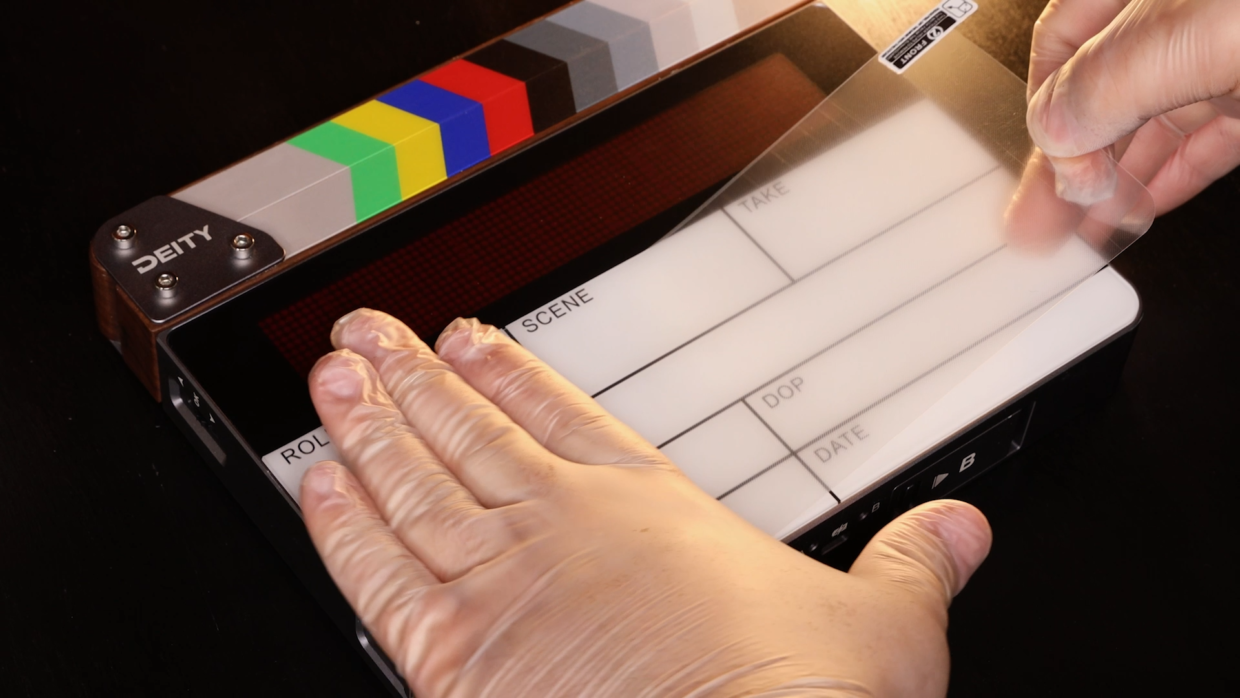
Take out one of the Deity Screen Protectors. Remove the plastic backing and slowly lay it in place by starting on one side of the slate and rubbing it onto the face’s surface. This will ensure you get as few bubbles as possible.
Once it’s on, remove the plastic front to reveal the matte surface.
Now you can use a permanent marker or other labels without the worry of future staining or residue.
Step #9
Finally, make sure your device is fully up to date with the latest firmware.
Select your slate inside the Sidus Audio app, then click on the three dots in the top corner. Inside this click on “firmware upgrade” and begin your download.
Once it’s complete, you’ll be up to date.
With that, your TC-SL1 is looking fresh, can be written on with a permanent marker, and has all the current features installed.
Happy shooting!