
The TC-1 is operated with a single control wheel and one button, and it reports its status through three front LEDs and an OLED screen. This guide explains the Function Control Wheel, the MENU/BACK button, what each LED color means, how to read the OLED display, and how to lock the screen so settings do not change during a shoot.
Function Control Wheel
Rotate the Function Control Wheel back and forth to move through the various options, then short-press the wheel to enter the highlighted item. The wheel is your primary way to browse menus and confirm selections.
MENU/BACK Button
- Power on: long-press the MENU/BACK button to turn the TC-1 on.
- Power off: long-press it again and a pop-up window appears to let you choose whether to turn the TC-1 off.
- Back: it also acts as a back button while you navigate the menus and setup screens, returning you to the previous screen or menu item.
- Lock or unlock: short-press the MENU/BACK button three times to quickly lock or unlock the screen.
Front LEDs
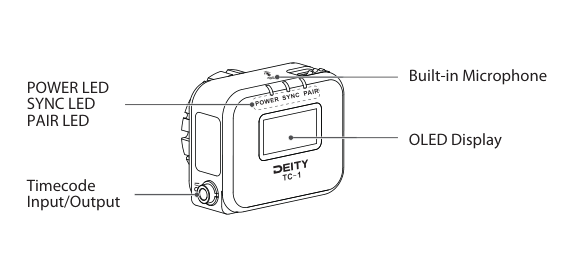
POWER LED
- Green: the battery is in the clear.
- Red: about 30 minutes of operation remains.
- Flashing red and green: the unit is charging.
- Steady green while charging: the battery is fully charged.
SYNC LED
- Slowly flashing red: the TC-1 is waiting to be synchronized, or the synchronization was unsuccessful.
- Quickly flashing red: synchronization is ongoing.
- Steady green: the TC-1 is in Master Run mode, or synchronization was successful.
PAIR LED
The PAIR LED reports the pairing state of the unit during wireless setup.
OLED Display Overview
The OLED screen shows the running timecode on top and a status bar of icons along the bottom. Each icon maps to one setting you can open with the Function Control Wheel.
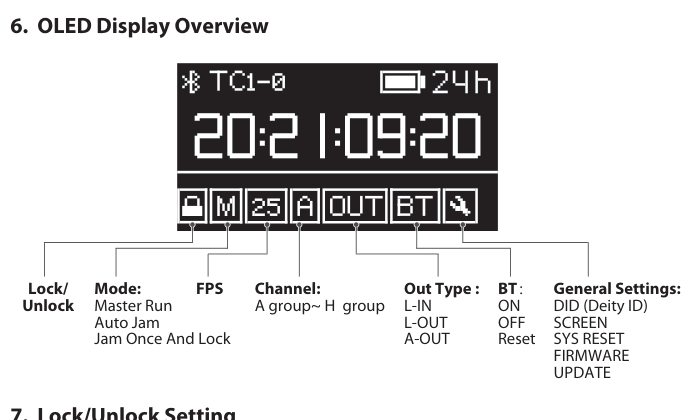
Reading the status bar from left to right:
- Lock / Unlock: whether the screen is locked against changes.
- Mode: Master Run, Auto Jam, or Jam Once And Lock.
- FPS: the current frame rate.
- Channel: the wireless sync group, A group through H group.
- Out Type: L-IN, L-OUT, or A-OUT.
- BT: Bluetooth on, off, or reset.
- General Settings: DID (Deity ID), SCREEN, SYS RESET, FIRMWARE, and UPDATE.
The top row shows the Bluetooth icon, the device name (for example TC1-0), the battery gauge, and the 24-hour clock indicator. For what each setting does, see [TC-1] Modes, Menu Reference & Timecode Sync.
Lock / Unlock Setting
Enter the Lock/Unlock option in the main interface and select LOCK to lock the screen immediately. When the screen is locked, the buttons will not work, which helps prevent settings from changing during operation. Select AUTO to follow the previous screen locking setting. You can also quickly lock or unlock the screen by short-pressing the MENU/BACK button three times.