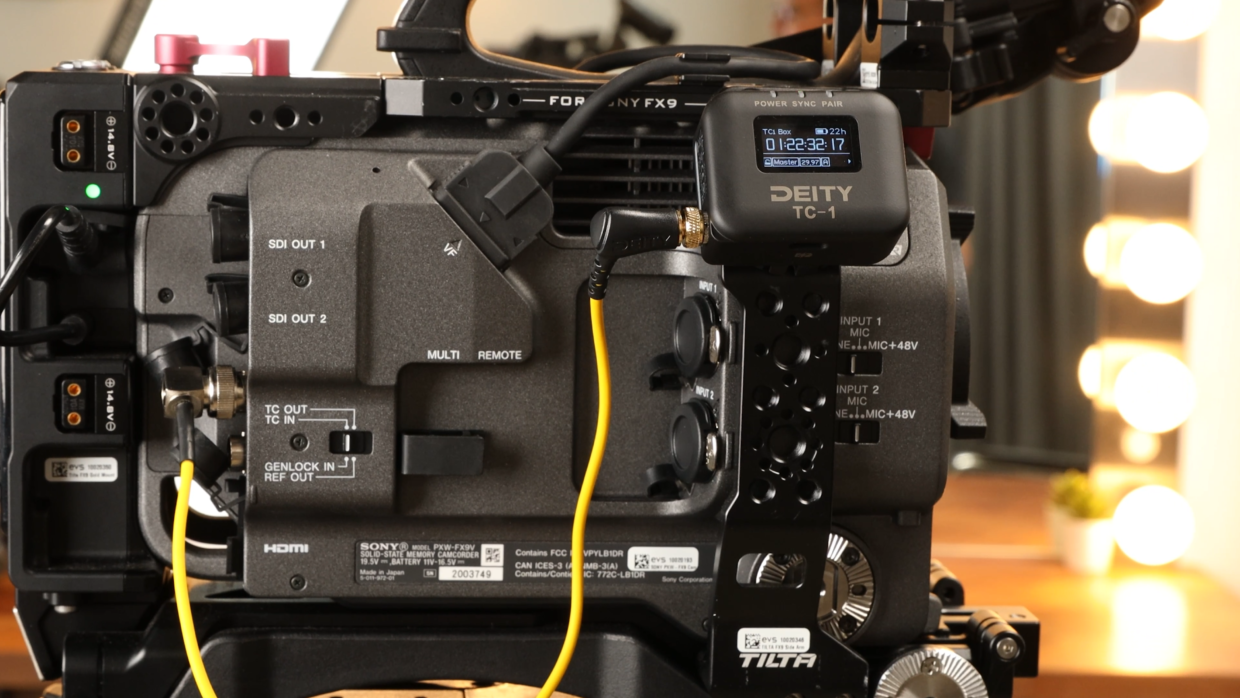
The Sony FX9 has a dedicated timecode port, so a Deity TC-1 can jam-sync it directly with a BNC to 3.5mm TRS cable. This guide covers matching frame rates, setting the TC-1 to L-Out, and putting the FX9 into Free Run from the TC/Media menu.
Step-By-Step User Guide
Step #1
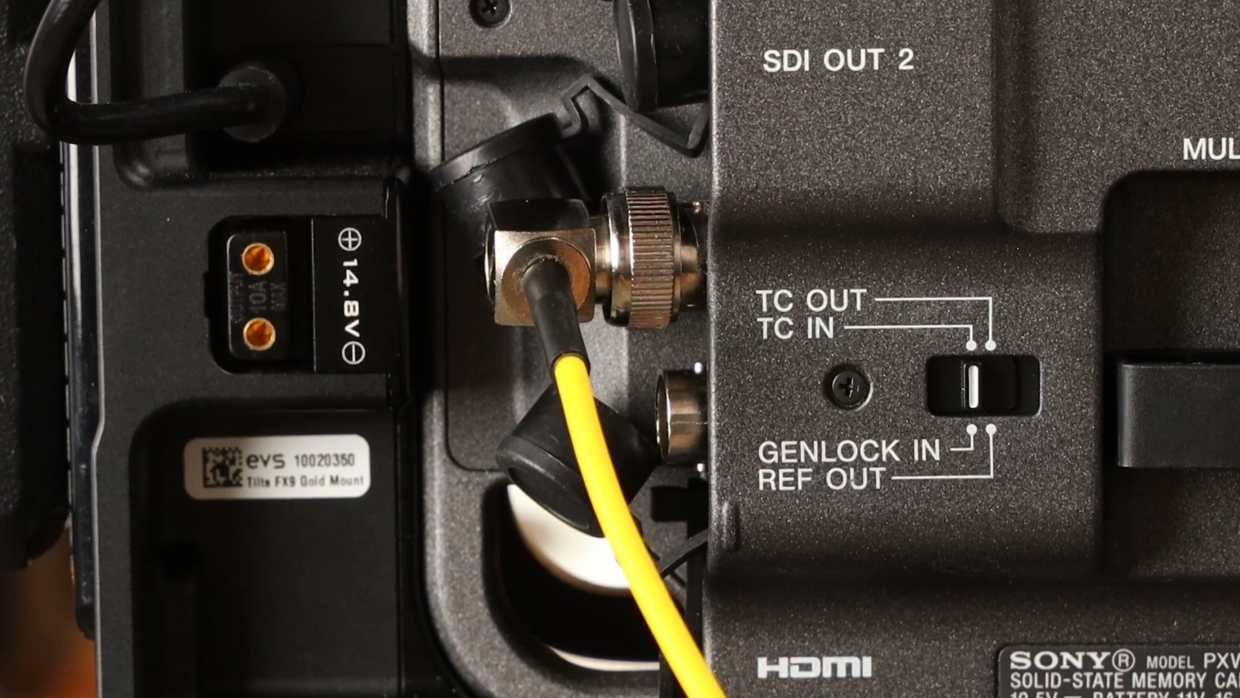
First things first, grab a BNC to 3.5 TRS cable. Next, locate the Timecode Port on the right side of the camera. Make sure it is in the “TC Input” mode and then plug in your TC-1.
Step #2
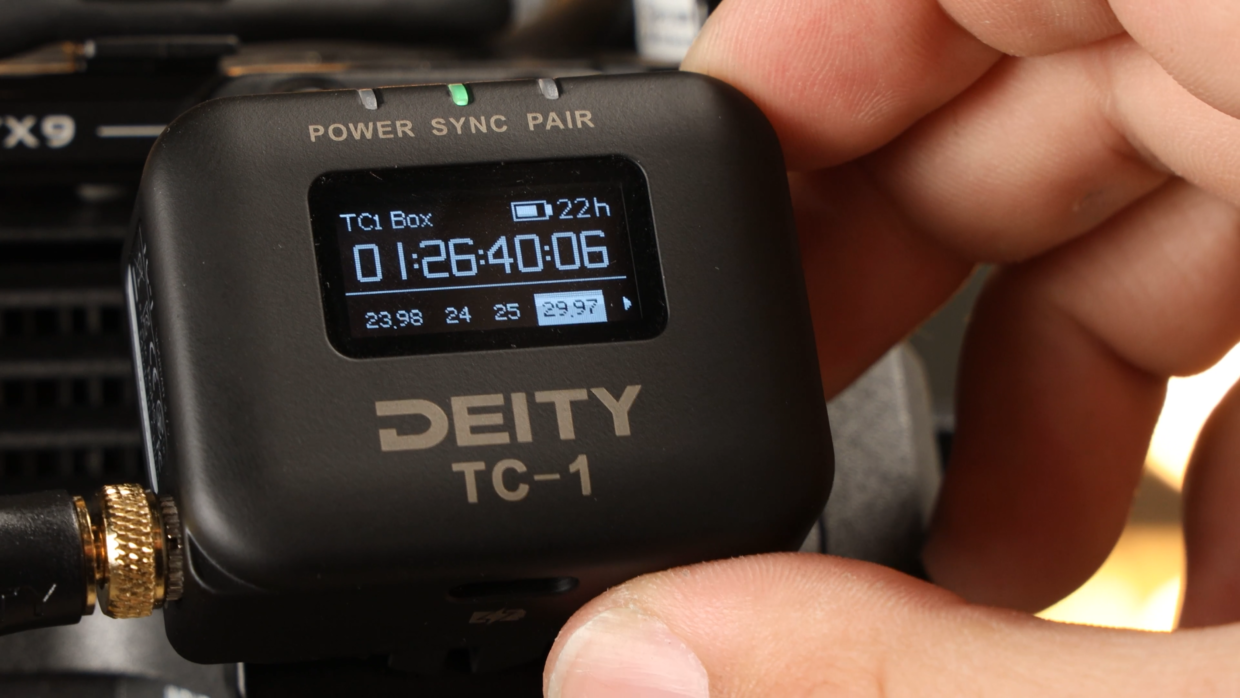
Really quickly, confirm your frame rate, in this case I’m using “29.97.“
On your TC-1, scroll over to the frame rate section and match it to the camera.
Step #3
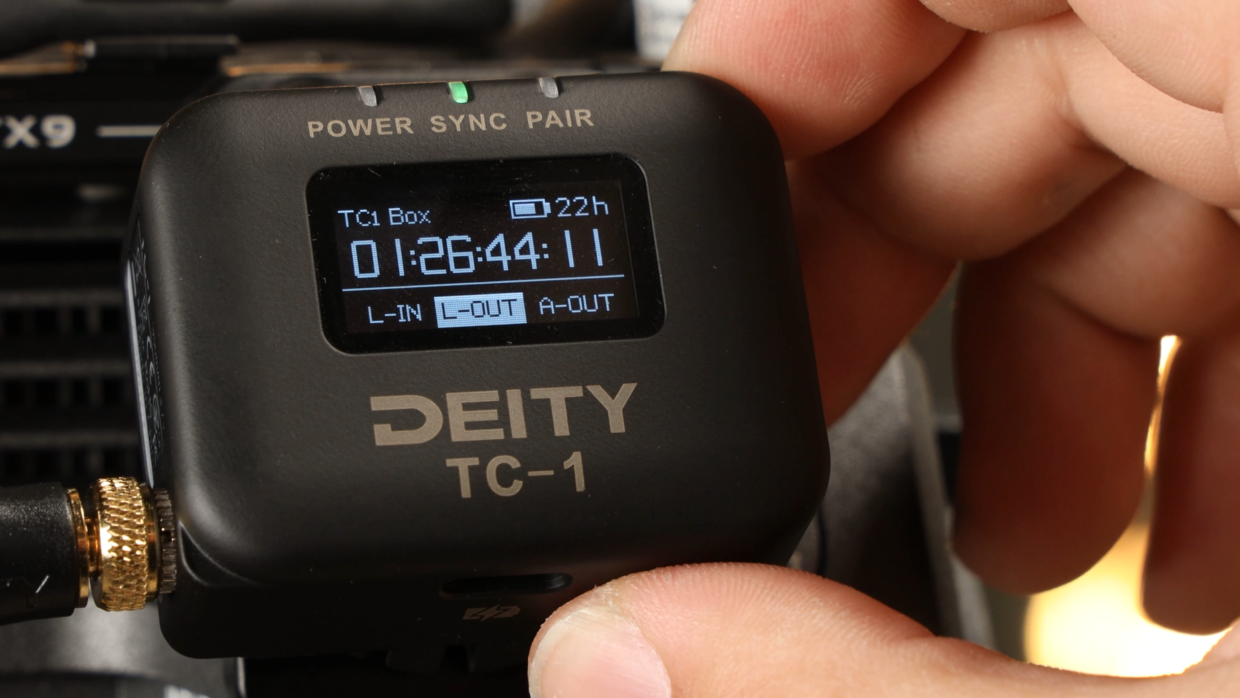
Next, scroll over to the out type section and select “L-Out.”
Step #4
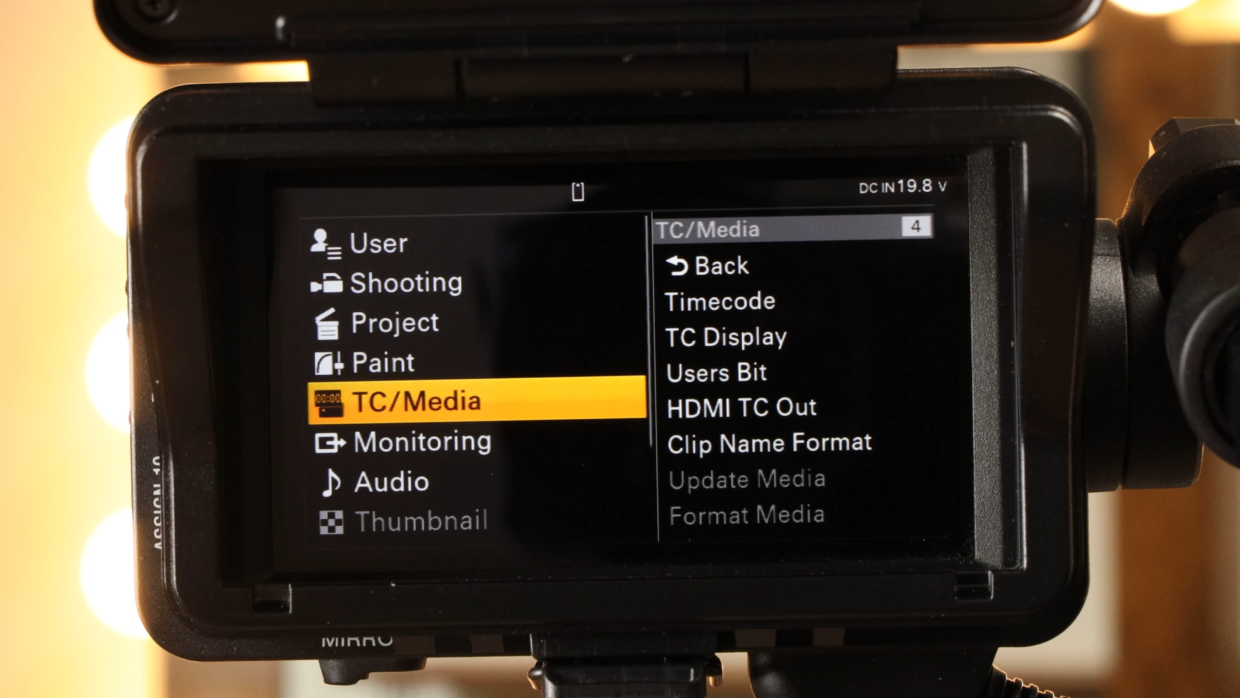
Inside of your camera’s menu, scroll down to “TC/Media” then select “Timecode.”
Step #5
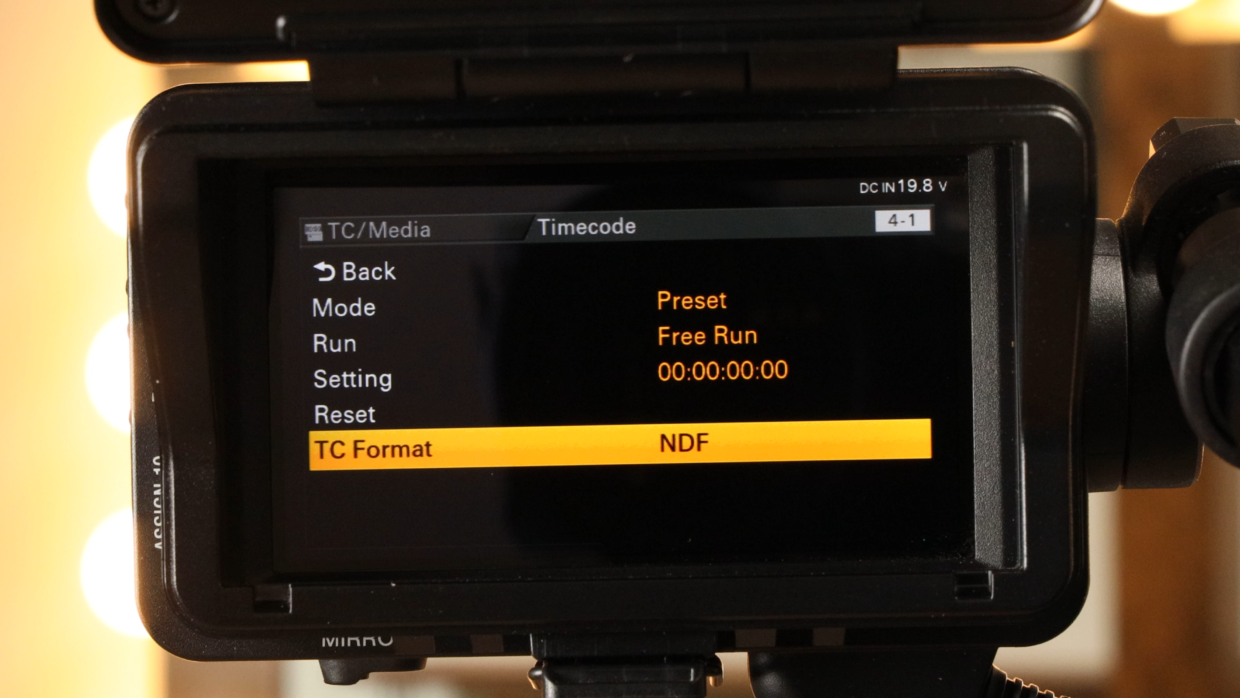
Inside of this menu, make sure your mode is set to “preset” your Run is set to “Free Run” and select the appropriate TC format for your frame rate.
You’re Connected!
Your Sony FX9 will recognize this signal and is ready to be synced with the rest of your set!
If you need help syncing your Deity TC-1 to your other Deity TC-1 timecode generators, here is a User Guide!