
6.1 Networking & Device Management
6.1.1 Establish Device Network
Users should reset the device's Bluetooth and turn on the Bluetooth on mobile terminal to search and pair before adding devices.
Scenario 1: Create a new device network
Click add button  under the "All Devices"and "Devices Groups" Appbar. App will search and display the pairable device nearby, user can tick target devices on the page then click "set up" button to create device network.
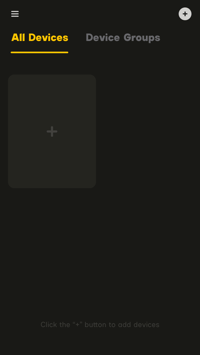
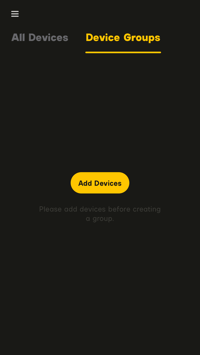
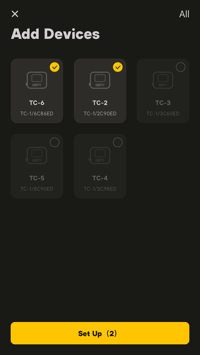 6.1.1.1.1 All Devices 6.1.1.1.2 Device Groups 6.1.1.1.3 Add Devices
Scenario 2: Add new devices to the existing network
Click the add button under the "All Devices" or in one device group folder.App will search and display the pairable device nearby, user can tick target devices on the page then click "set up" button to add these devices to the existing network .When adding devices to the existing network in the device group folder, the newly added device will be displayed in "All Devices" synchronously.
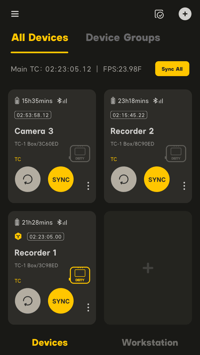
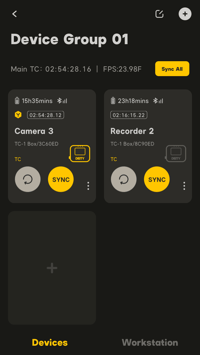
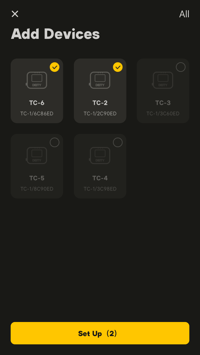 6.1.1.1.4 All Devices 6.1.1.1.5 Device Group 6.1.1.1.6 Add Devices
The total number of added devices should be less than 20 to ensure communication quality.
6.1.1.2 Feedback of networking
-
If the device configuration is successful, the added device will be displayed in the form of a card under "All devices", and the user can directly enter its control process;
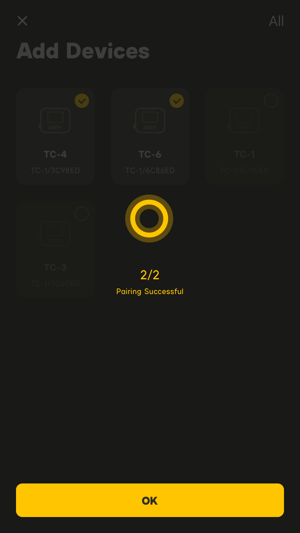 6.1.1.2.1 All configuration done
 - If part of the device configuration fails, please check the status of these devices, such as whether the Bluetooth is reset, whether the device is turned off, whether the distance exceeds the limit, etc. You can repeat the first step to re-add these devices after checking; If all device configuration fails, please check the devices status then click the "Retry" button on the page to try connecting again.
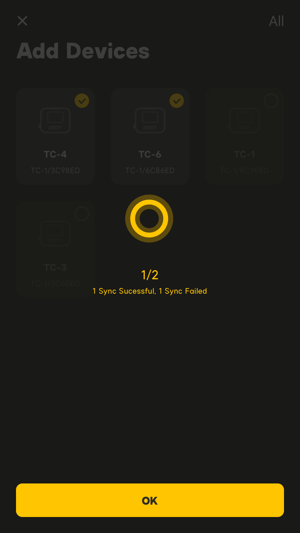
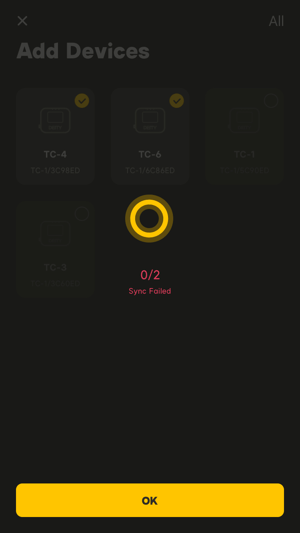 6.1.1.2.2 Part of configuration done 6.1.1.2.3 All configuration fail
6.1.1.3 Status of Communication network
While establishing communication network for audio devices, the App will prioritize the devices with the best signals as main node  , to control the entire communication network that consists of multiple devices.After devices configuration, the device card of main node displayed on the page will appear the mark of main node ; Users can click setting button
  of device card and select "Set as Main Node" to switch to other devices as the main node.
The main node is critical to network communication stability:
When the the main node device has a communication failure, the App will choose other device with the best signals as new main node automatically and reconnect to the entire communication network to prevent loss of normal communication with all devices.
- When re-connection succeeds, the status of each device on the page will remain displayed normally, and the user can still control it normally;
- When re-connection fails, all devices on the page will show "disconnection" status and users need to click "Reconnect" button
 to restore the connection between the App and the device network.
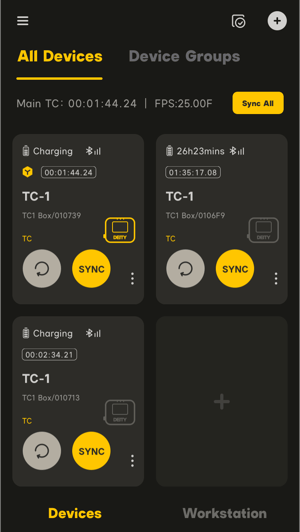
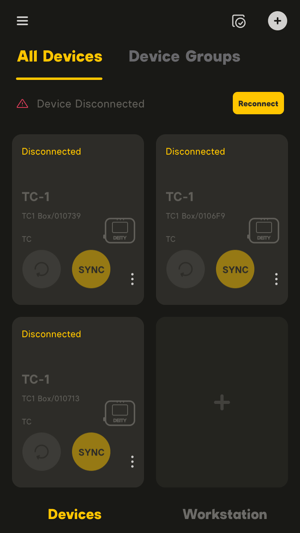 6.1.1.3.1 Normal Communication 6.1.1.3.2 Disconnected
For any communication fault of other devices other than main node, these devices on the page will show "offline" status which do not influence normal control over other online devices. In this case, Users do not need manual operation, just wait patiently for the communication to resume. Please check the status of audio devices such as whether the Bluetooth is reset, whether the device is turned off, whether the distance exceeds the limit, etc, to ensure the validity of App scanning.
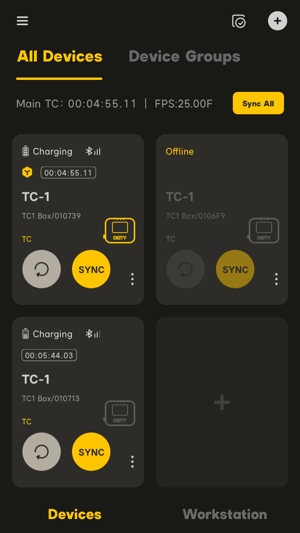 6.1.1.3.3 Offline
6.1.2 Manage device groups
Sidus Audio™ provides the device group function to group and edit the devices on the network, in order to meet the devices management in multiple scenarios.
- Click "Add" button
 under "Device Group" top bar to create a device group folder;
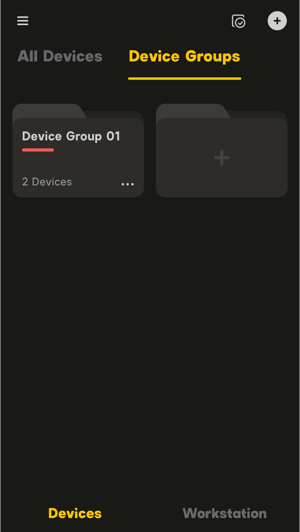 6.1.2.1 Device group folder
- On "Add Group" page, rename the new device group in the input box to conform to the user's independent usage habits, select the color in the shortcut color
 to set the color mark of the device group, tick required devices by the scenario to add them into the group folder, then add "OK" complete the editing of group folder.
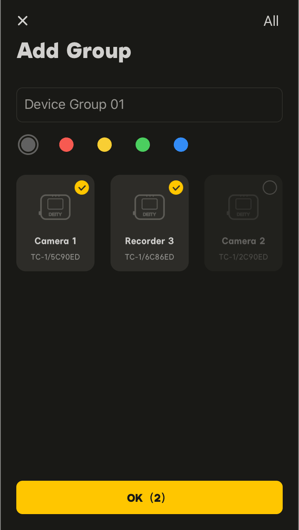 6.1.2.2 Add Group
- Enter the existing device group, the devices that have been ticked and added will be displayed on the page in the form of cards, and the user can directly control them.Click the settings button
 in the device card, users can "rename", "set as the main node", "delete" the device; Click the batch management button to enter the "Edit Group" page. Users can quickly tick/cancel devices among all network devices to edit the number of devices in this scenario; Click the Add button to enter the process of adding devices. Users can add new devices to the current device network and the current scene device group at the same time.
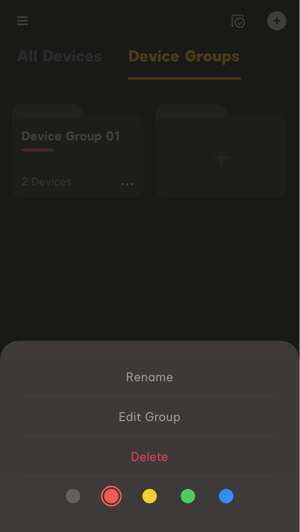
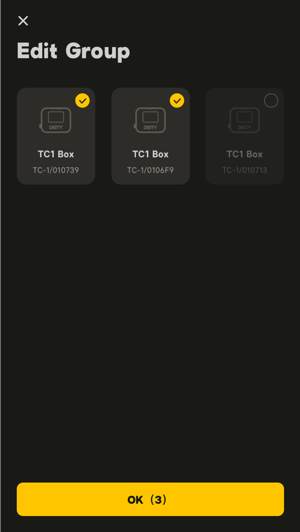
- Removing the device from a device group will only clear the device information in the device group, and will not affect the device's existence on the network.
- "Rename", "Set as Main Node" device in "Device Group" will synchronously change the state of the device in"All Devices."
6.1.3 Monitoring Mode
The added devices in App can be monitored in "Devices" and "Workstation" mode. User can click the menu bar at bottom to switch between two monitoring modes.
- In "Devices" mode, the devices will be displayed on the page in the form of cards. User can control all types of devices extensively;
- In "Workstation" mode, the devices will be displayed on the page in the form of monitoring bar. User can manage devices in this working mode centrally.
6.1.3.1 Devices
In "Devices" mode, click "All Devices" or "Device Group" to display the devices in the form of control card. Users can view the communication status and running status of devices extensively and perform simple operation on devices.
- On/OFF button
 in device card: Turn on/off online device (Only part of devices support this function);
 - Control buttons

 in device card: Support quick control of device status;
 - "Sync All" button
 in page: Click to synchronize the timecode of all devices to timecode of main node.
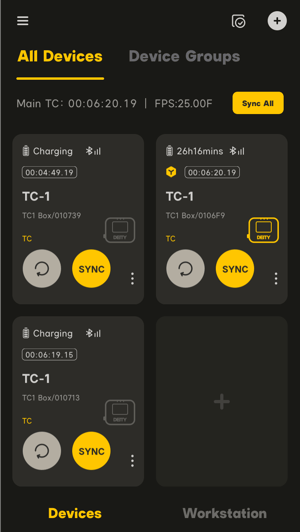
6.1.3.1 Devices
Click the device card to enter the detailed control page of next level. For details, please refer to 6.2 Device Monitoring & Control.
6.1.3.2 Workstation
In "Workstation" mode, the top navigation bar displays the name of the current station. If there are multiple stations, you can click to switch. In each workstation, the user can achieve unified monitoring of the devices that support the current working mode.
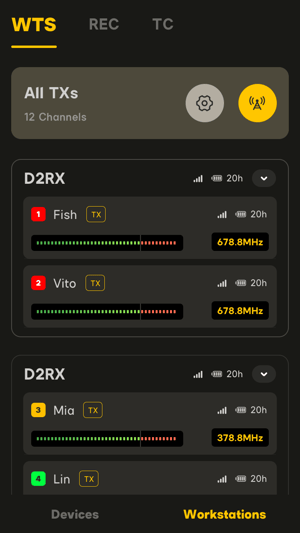 6.1.3.2.1 Workstation
"All TCs" control bar at the top of the workstation page can uniformly set and control the state of the running devices in the workstation. In "All TCs" control bar, click the setting button  to enter the "All TCs setting"page and you can set the "Time Code", "User Bit", and "FPS" of the main node. Click the Sync button n "All TCs" control bar,it will synchronize the three parameters to other devices; Click the Reset button , the timecode of all devices running in the workstation will be reset to zero.
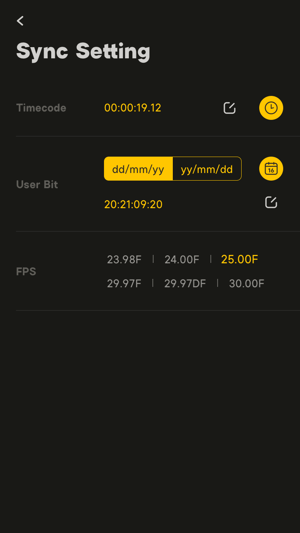 6.1.3.2.2 All TCs setting
For the devices in workstation, the monitoring bar will include the current configuration parameters and running status of device,and also has shortcuts to control the devices one by one.
Click the monitoring bar of device to enter the detailed control page of next level. For details, please refer to 6.2 Device Monitoring & Control.
If FPS of the main node exceeds the compatible range of other devices, the corresponding devices may fail to synchronize.
6.2 Timecode adjustment and control
6.2.1 TC
6.2.1.1 TC Details Page
Users can perform one-key reset to the current TC and one-key synchronization to the main node timecode operation on TC detail page.
The TC details page consists of device status (current power and signal strength), current parameter configuration and display, current timecode and lower control area.
Users can click the preset button  on the TC details page to save the current parameters for recall. For details, please refer to 6.2.3 Preset.
Users can adjust and change parameters by clicking the setting button on the TC details page. For details, please refer to 6.2.1.2 TC Parameter Setting.
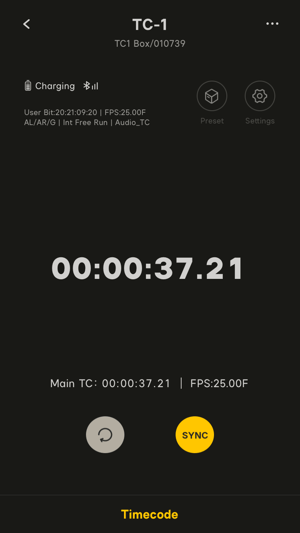 6.2.1.1.1 TC details page
Relevant controls:
- Synchronization button: Click it to synchronize the "Timecode", "User Bit" and "FPS" to the corresponding parameters of the master node;
- Reset button: Click it to reset the current timecode to zero;
The central time code is based on the currentlydirectly-connected(the main node) device, and the corresponding time code (continuous timing) and frame rate will be displayed.
6.2.1.2 TC Parameter Setting
Click the setting button on the TC details page to enter the TC Parameter Setting page.
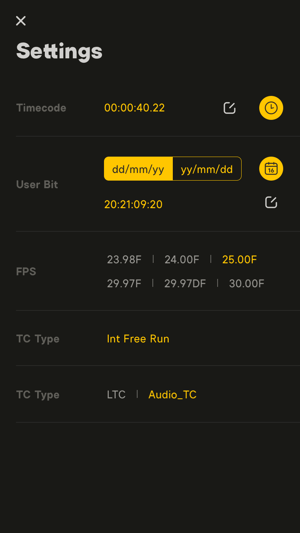 6.2.1.2 TC Parameter Setting
- Timecode: Support independent edit of timecode
 , or click "System Time" button
  to call the current time as the timecode.
 - User Bit: Users can set User Bit in two formats. In "dd/mm/yy" format, users can set the code of "day/month/year/times"; in "yy/mm/yy" format, users can set the code of "year/month/day/times".Click "System Time" button
 to call the current date as User Bit.
 - FPS: Users can switch FPS level within the range supported by the device.
- TC Output Setting: Users can switch the output modes within the range supported by the device. The format is: Left channel/Right track/Earthing.
- TC Type: Timecode type support on/off. Users can switch the TC type he range supported by the device.
- Output Level Control: Read the current level of device by default and users can adjust output level with the slider.
- Output Volume: LTC and Audio-TC are supported.
The above parameters are selectively displayed according to the compatibility of the device.
6.2.2 General Settings
Click the General Setting button  on the TC details page to enter the "General Setting" page and set the following functions:
- Device Mark: Enter the "Device Mark" page to change device ID and it will take effects immediately after change.
- Device Language: Switch between the languages supported by the device on "Device Language" page, and it will take effects immediately after change.
- Firmware Update: Click "Firmware Update" to view the upgradable version of Bluetooth software, device software, Bluetooth hardware and device hardware in online, and support to upgrade software to App. Note that this function requires network operation, otherwise, firmware upgrade will fail.
- Date & Time: Click it to view the built-in time and date of device; user can customize the change, or realize one-key synchronization to the system time of mobile terminal.
- Standby Setting: Automatic standby time for devices. User can select the standby time of 15s/30s/1min/2min/5min/10min/15min/30min/60min. It will take effects immediately after setting.
- User Guide: Click it to jump to the official website for more information. The website can be visited normally in online state only.
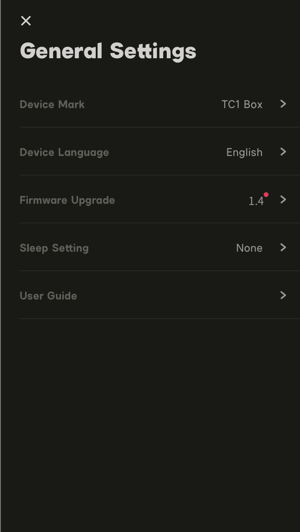
6.2.2 General Settings
6.2.3 Preset
Click "Preset" button on the device details page to enter the Preset Store. The record support "Save to Preset","Rename","Delete" and recall.
There are differences in parameter support between devices, Parameters that are not supported will skip execution when calling the record among TCs.While missing parameters will be executed according to the optimal and default value of device.
6.2.3.1 TC Preset
Click "Preset" button icon on TC details page to enter TC Preset Store. Each saved preset record includes the information about TC parameter setting. (For details, please refer to 6.2.3.2 TC Parameter Setting).
Users can click the button of the preset record icon to rename or delete the record. Click the batch management button icon to enter the "Management" page, users can select multiple records to delete.
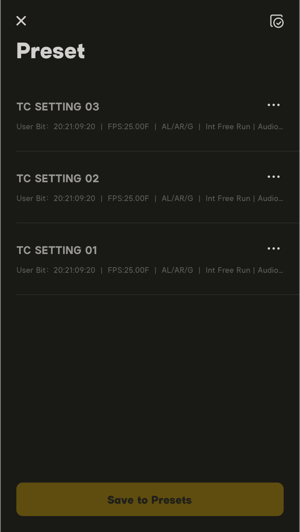
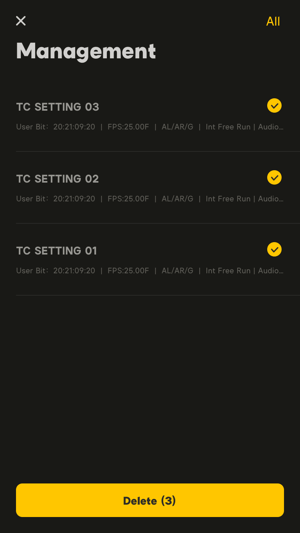 6.2.3.1.1 Preset 6.2.3.1.2 Batch Management
6.3 Device wireless transmission and control
6.3.1 Wireless Transmitter Details Page
On the wireless transmitter details page, users can manage and operate the current device.
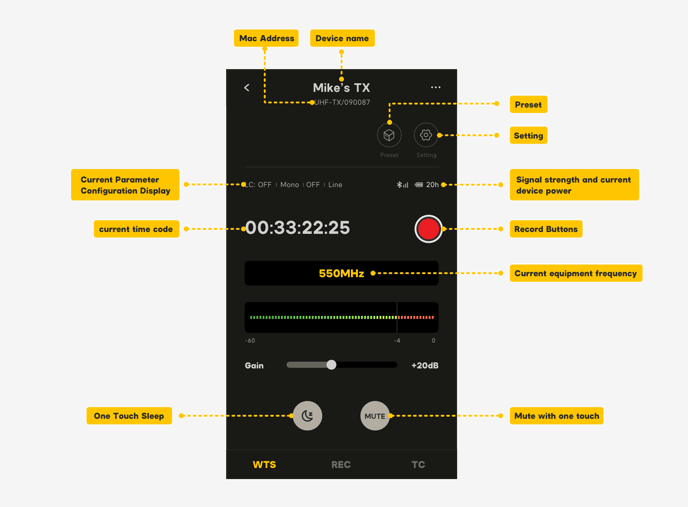
6.3.1 Wireless Transmitter Details Page
6.3.2 Wireless Transmitter Settings
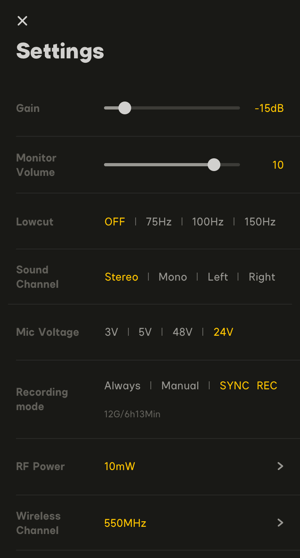
Users can click the parameter setting  button in the upper right corner of the wireless transmitter details page to enter the wireless transmitter parameter setting page.
 6.3.2 Wireless Transmitter Settings
- Gain: The gain value of the microphone input can be adjusted, and the maximum can be increased by 30dB.
- Monitoring: used to adjust the volume of monitoring, there are 12 adjustable gears.
- Low cut: You can set the value of low cut according to the needs of use. There are four options for low cut: OFF, 75Hz, 100Hz, 150Hz.
- Channel: Display the prompt of current microphone channel number.
- Microphone voltage: You can manually switch the driving voltage of the microphone. There are three optional states. You can choose the driving voltage of the microphone according to the type you need.
- Recording mode: used to select the internal recording mode of the device, you can choose to record all the time or manually open the recording mode. At the same time, the current memory card capacity and the remaining storage time can be displayed.
- RF function: In this mode, the power of RF transmission can be selected, and the corresponding RF power of the legal frequency band that meets the requirements will be selected according to the needs. (When the region is the United States, the RF function and the recording function cannot be performed at the same time.)
- Wireless channel: You can manually select the wireless frequency point according to the needs of use. If you modify the frequency point, the frequency point of the corresponding connected receiver channel will also be modified to the same value.
6.3.3 Wireless Receiver Details Page
On the wireless receiver details page, the user can manage and operate the current device, as well as set the wireless frequency point and gain control of the connected transmitter.
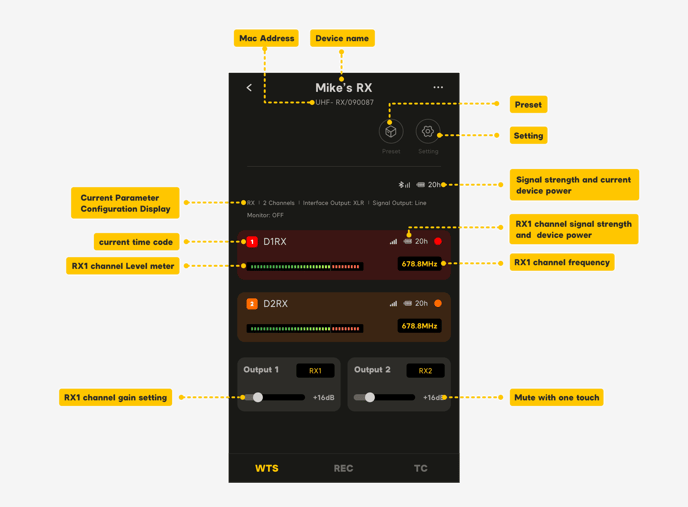
6.3.3 Wireless Receiver Details Page
6.3.4 Wireless Receiver Settings
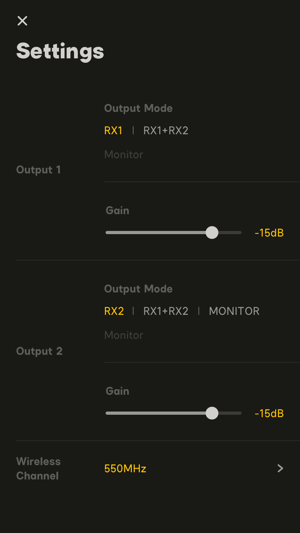
The user can click the parameter setting button in the upper right corner of the wireless receiver details page to enter the wireless receiver parameter setting page.
6.3.4 Wireless Receiver Settings
-
Channel 1: You can set the output mode of this channel, you can choose to output only the sound of the current channel or choose to output the mixed channel mode. The user can set the output gain value of this channel, and there are 10 gears to choose from.
-
Channel 2: You can set the output mode of this channel. You can choose to output only the current channel sound, select the output mixed channel mode, and select the MONITOR monitoring mode. On the device, the MONITOR monitoring function is selected in the OUT TYPE output mode channel B. MONITOR monitoring Gain parameters can only be set in output mode. The user can set the output gain value of this channel, and there are 10 gears to choose from.
-
Wireless channel: You can manually select the wireless frequency point according to the needs of use. If you modify the frequency point, the frequency point of the corresponding connected transmitter will also be modified to the same value.
6.3.5 Wireless Device Activation
This activation procedure applies only to global version wireless devices.
Users need to connect to the Sidus Audio™ App for activation when purchasing a new global version of the wireless device. After the networking operation is successful, the Sidus Audio™ App software can identify the device to be activated and prompt to enter the device activation interface. The user can choose whether to activate the device. If the device is activated, the software will determine the local legal frequency band according to the current location information of the mobile phone, and the user can enter the device list after selecting the frequency band according to the needs.
After the network is established successfully, the Sidus Audio™ App will prompt whether to automatically assign frequency point information, and the user can choose to enter directly or choose to automatically assign.
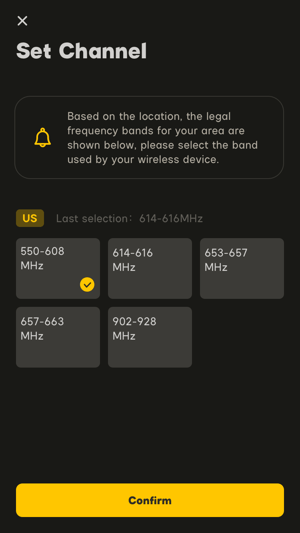
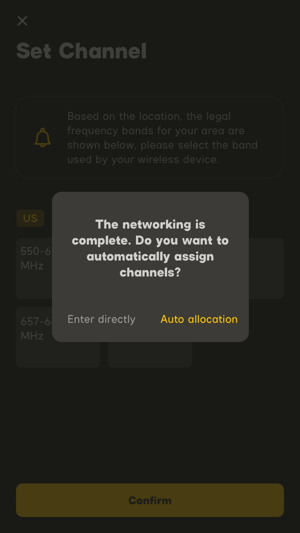
6.3.5.1 Wireless Device Activation 6.3.5.2 Wireless Device Activation Confirm
6.3.6 Wireless Device Frequency Setting
In order to meet the frequency band management of wireless devices in different regions, Sidus Audio™ provides the function of device groups to manage wireless device frequency bands for devices on the network.
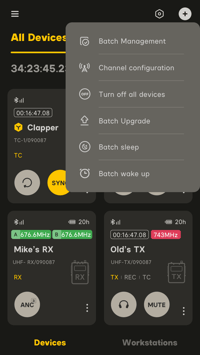
The user clicks the setting  button in the upper right corner of the device list interface to select the "Channel Configuration
  " function. After entering the channel configuration interface, select the frequency scanning icon
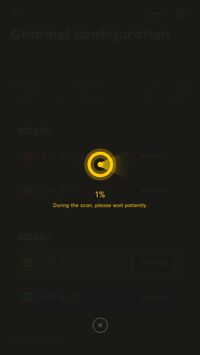
  in the upper right corner to start using the frequency scanning function of the receiver to scan the available frequency point information in the current environment. After the completion, Sidus Audio™ will automatically assign the frequency point with less interference to the device according to the available frequency point information after scanning. The user can also manually switch the desired frequency point by selecting the frequency point icon behind the device in the "Channel Configuration Interface".
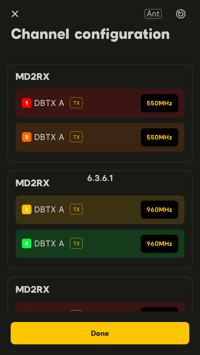
6.3.7 Wireless Device Frequency Band Setting
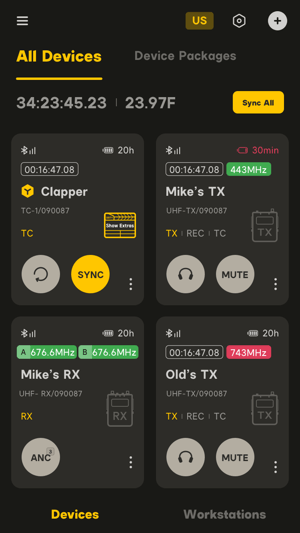
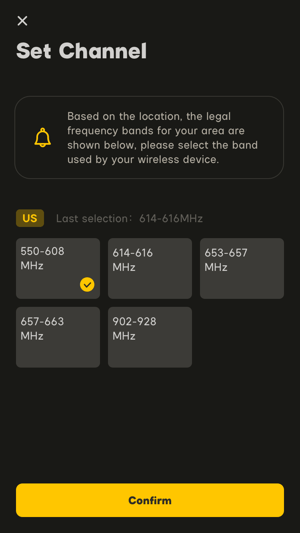
Users can modify the frequency range of the device according to the location of the device currently in use. If there are multiple frequency bands available in the user's local area, the user can modify the frequency range of the currently connected device as needed. Click the region icon  in the upper right corner of the device list to enter the frequency band selection interface to modify the frequency range.
6.3.7.1 Device List 6.3.7.2 Frequency Band
6.3.8 Wireless Device Sleep Function Settings
- Wireless Transmitter Sleep Settings:
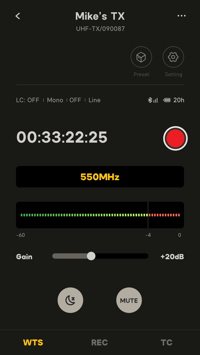
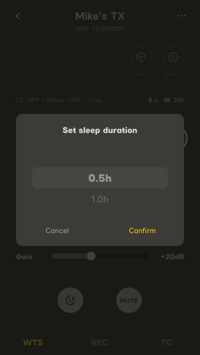
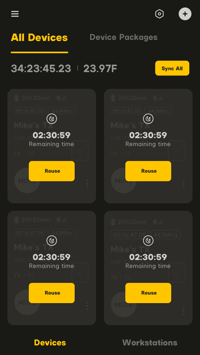
The user can enter the wireless transmitter details page to set the sleep function, click the sleep mode  switch, and select the sleep time in the pop-up window to start the wireless transmitter sleep mode. In the sleep mode, the wireless transmitter only retains the Bluetooth connection and 2.4G connection and timecode functions. After the sleep mode is successfully set, the remaining sleep time will be displayed in the wireless transmitter card in the device list, and the device will be automatically woken up after the countdown ends to restore the device's use function.
 6.3.8.1 Sleep Setting 1 6.3.8.2 Sleep Setting 2 6.3.8.3 Sleep Setting 3
Wireless Transmitter Wake Up:
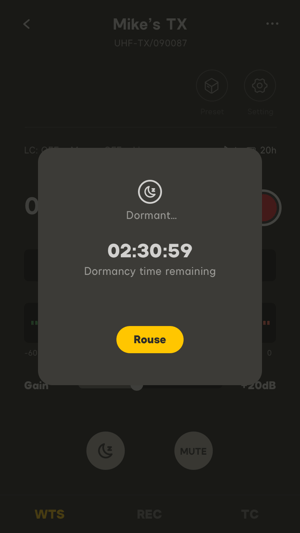
To wake up the device, the user can click  to wake up the device through the wireless transmitter details page, and the wireless transmitter can be used normally after waking up the device.
 6.3.8.4 Wake Up
- Batch sleep settings for wireless transmitters:
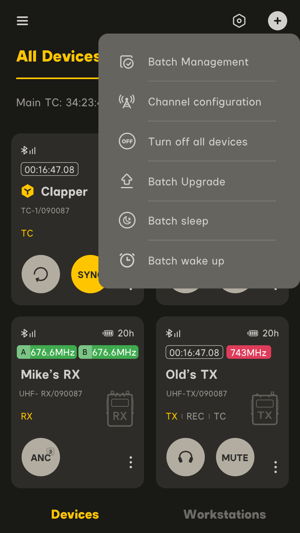
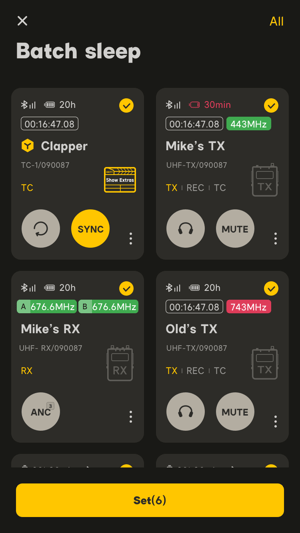
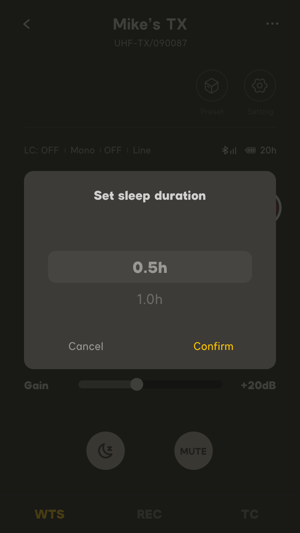
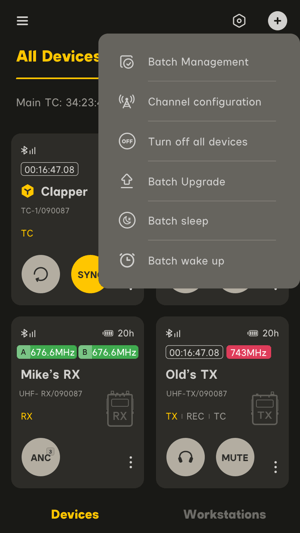
The user can select the setting on the upper right of the device list, select the "batch sleep  " function in the drop-down menu, and then enter the device selection interface, select the device that needs to sleep, click Set
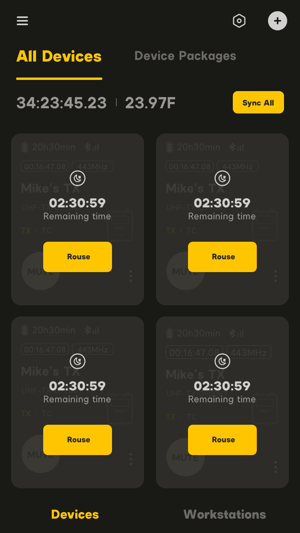
  and adjust the time required for sleep, and then complete the batch of transmitters after confirmation Hibernation settings. The remaining sleep time is displayed in the wireless transmitter card that has been set to sleep in the device list, and the device will be automatically awakened after the countdown ends to restore the device's use function.
 6.3.8.5 Batch Sleep Setting 1 6.3.8.6 Batch Sleep Setting 2
 6.3.8.7 Batch Sleep Setting 3 6.3.8.8 Batch Sleep Setting 4
- Wireless transmitter batch wake-up settings:
To wake up the device, the user can select the setting on the upper right of the device list, select the "batch wakeup  " function in the drop-down menu, select the device to be woken up in the opened device list interface, and click Confirm to successfully wake up the selected devices in batches. wireless transmitter.
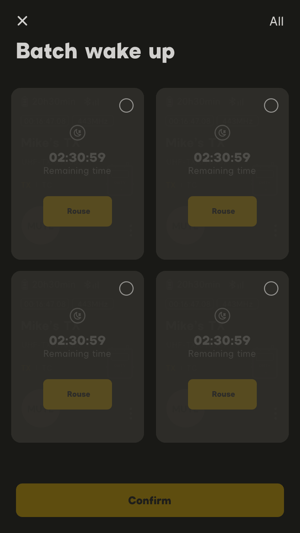
6.3.8.9 Batch wake-up setting 1 6.3.8.10 Batch wake-up setting 2
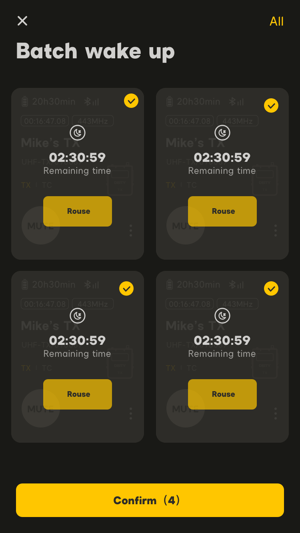
6.3.8.11 Batch wake-up setting 3
6.4 Device recording and control
6.4.1 Wireless Transmitter Recording Control
The user can start and stop the recording function of the current device through the recording switch  in the wireless transmitter details page.
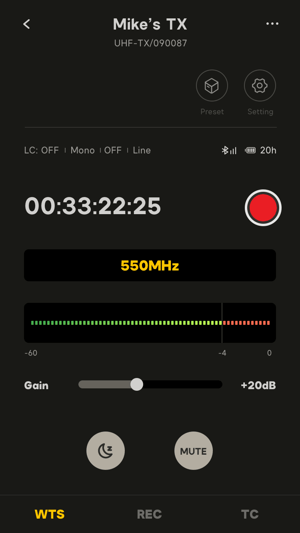 6.4.1 Recording Control
6.4.2 Recording Workstation Control
The user can select the recording tab on the top of the workbench to enter the recording setting interface of the workbench.
-
The user can choose to start or stop the recording switch
of the wireless transmitter according to the card connected to the wireless transmitter, and check the current level of the wireless transmitter, wireless signal strength and battery power through the status information in the label. -
Users can also control the recording and stop
functions of all connected devices through the all recording control card located on the top card, and can also set recording parameters for all devices on the current interface through the setting function.
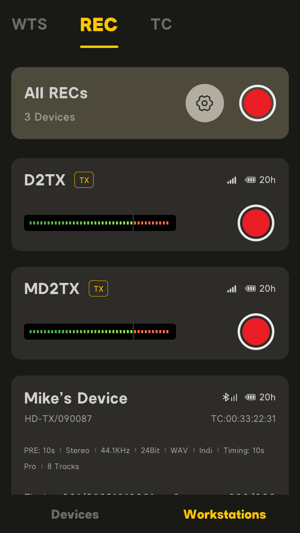 6.4.2 Recording Workstation
Recording settings:
-
Bit depth: You can set the bit depth of the recording, there are 24bit and 32bit floating point recording options.
-
File format: The user can set the format of the recording file storage according to the needs, and can choose WAV, MP3, M4a, MWV format.
-
System time: The user can set the system time for recording, and after the setting is completed, the set time can be embedded in all devices.
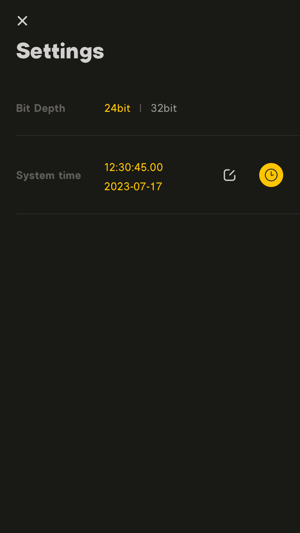 6.4.2.1 Recording Settings
6.4.3 Recording Playback
Click to enter the recording file  in the wireless transmitter details page to read the list of recording files of the current device.
-
Users can choose to open to view the recording materials in different folders in the recording file list, and can choose to load the materials to realize the playback of the materials.
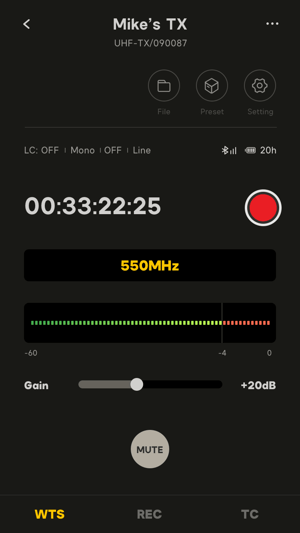
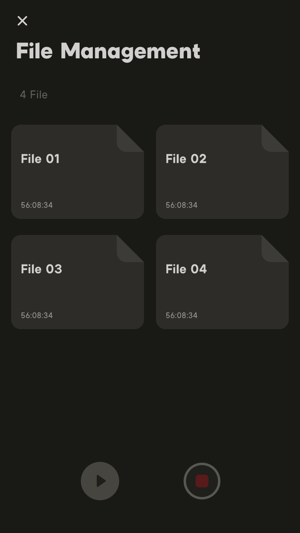 6.3.8.7 Recording Playback 1 6.3.8.8 Recording Playback 2