
3.1 Sidus Audio™ Account System
3.1.1 Guest Mode
Users without an account can also use Sidus Audio™ App.Users can control the audio devices through Bluetooth without registration and login and the data generated will be saved locally to the terminal device. Cloud services, etc. are disabled, as no account binding is not available under guest.
3.1.2 Account Registration
Click "Menu" button  on the App's home page to unfold the sidebar, click "Log in" button
  to enter the login process. The unregistered users can jump to the registration process via registration guide field.
- Step 1: Use a valid E-mail for registration. The App supports registration via E-mail globally.
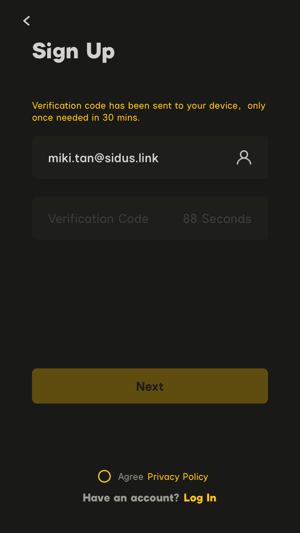 3.1.2.1 registration
- Step 2: Click "Get" to get a verification code after entering email in correct format, and fill the verification code in the specified period to verify account validity.
- Step Read privacy policy when registering for the first time, and agree on the articles contained herein before continuing with next step.
- Step 4: Set your own password and re-enter it again for confirmation and the account will login automatically after successful registration.
When registering for the first time, the System will prompt whether to combine the local data to the new account to help the migration of historical data.Users can choose "Confirm" to synchronize data to new account, choose "Cancel" to discard the historical data, it gives no further query once user gives a response.
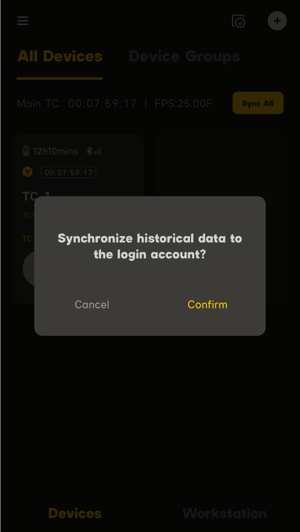 3.1.2.2 query
3.1.3 Login & Logout
When not logged in, click "Menu" button icon on the App's home page to unfold the sidebar, then click "Log in" button icon to start login. The App supports two login modes, including login by account & password and third-party login with Sidus Link App.
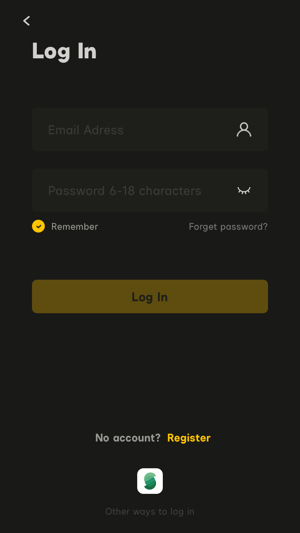 3.1.3.1 Login
- Account & password login: Enter the registered Sidus Audio™ account and matched password to login successfully. The system ticks "remember" by default to facilitate re-login quickly.Users forgetting password can click "Forget Password?" guide field to reset password. For details, please refer to 3.1.4 Account & Safety.;
- Third-party login: Users can click Sidus icon
 to log in the Sidus Audio™ App using the registered Sidus Link® account and password. The steps are the same as the Sidus Link® App login . Sidus Link® App has the right of interpretation.
Logout: Enter Settings by clicking "Set" button  in the workspace to and click "Log out".
Only login users can use cloud services in the App. The services are disabled when users log out and does not resume until the log in again. After users log out the account, the data generated by logout users will not be combined to the login account.
3.1.4 Account & Security
3.1.4.1 Forget Password
If forgetting the password in the login process, users can click "Forgot Password?" guide field to enter the password reset process.
- Step 1: User needs to acquire verification code again before resetting and enter it within time limit to confirm account availability;
- Step 2: After entering the new password correctly and reconfirming it, the reset will be successful.
3.1.4.2 Modify Password
If users need to change password while logged in, click "Users Personal Center" icon in workspace then select "Account&Safety" to enter password resetting process. Users need to acquire and enter verification code again. The new password will work when logging in again after successful resetting.
3.2 Sidus Audio™ Cloud Service
The App provides users with free cloud service which saves communication network and audio preset records after login, so that data are synchronized when users login via different mobile terminals.
The local data generated after logout cannot be synchronized to cloud; therefore, data generated after logout cannot be synchronized to user's other mobile terminals.